

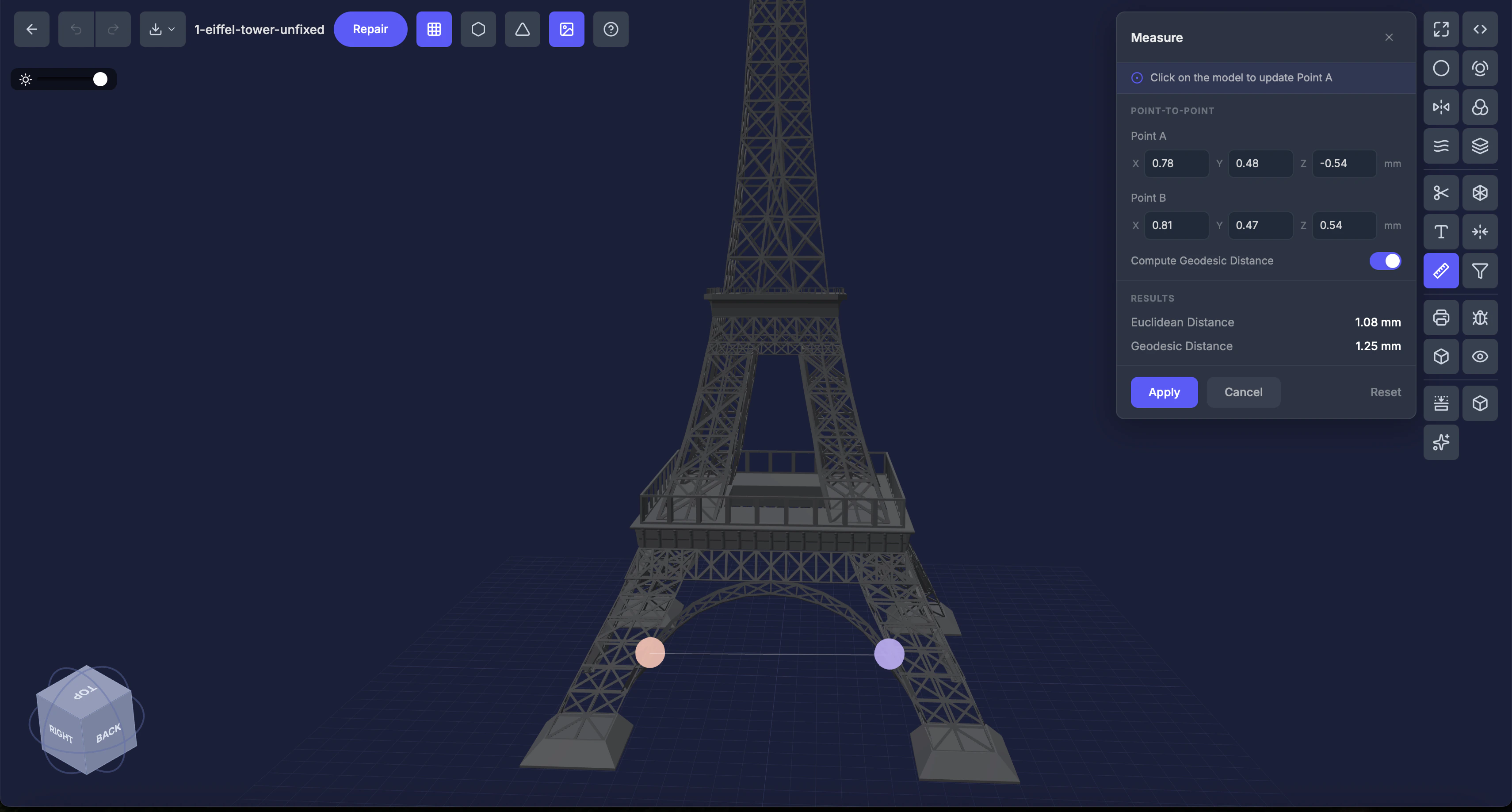
When to use this
- Checking if a feature is the right size
- Verifying dimensions match your design specifications
- Measuring the distance between mounting holes, edges, or features
- Checking the path length along a curved surface
Settings
Point A and Point B
Click on the model to place each point, or enter X, Y, Z coordinates manually.Geodesic distance
Toggle (default: on). Also calculates the distance along the model’s surface — not just a straight line through the air.Results
After placing both points, click Apply to compute the distances (the button shows Processing… while it runs). Once the calculation finishes, you see:- Straight-line distance — The shortest path through the air
- Surface distance — The shortest path along the model’s surface (if enabled)
Step by step
1
Select the Measure tool
Click Measure in the Interactive Tools section.
2
Click Point A
Click on the model to place the first measurement point. A marker appears.
3
Click Point B
Click again to place the second point. A second marker appears.
4
Click Apply
Click the Apply button to compute the distances. The button shows Processing… while it runs, then the results appear.
Tips
- Surface distance is useful for measuring around curved features (e.g., the circumference of a cylinder)
- You can manually type coordinates for precise placement
- For overall dimensions (width, height, depth), use the Object Info tool instead