

Layout
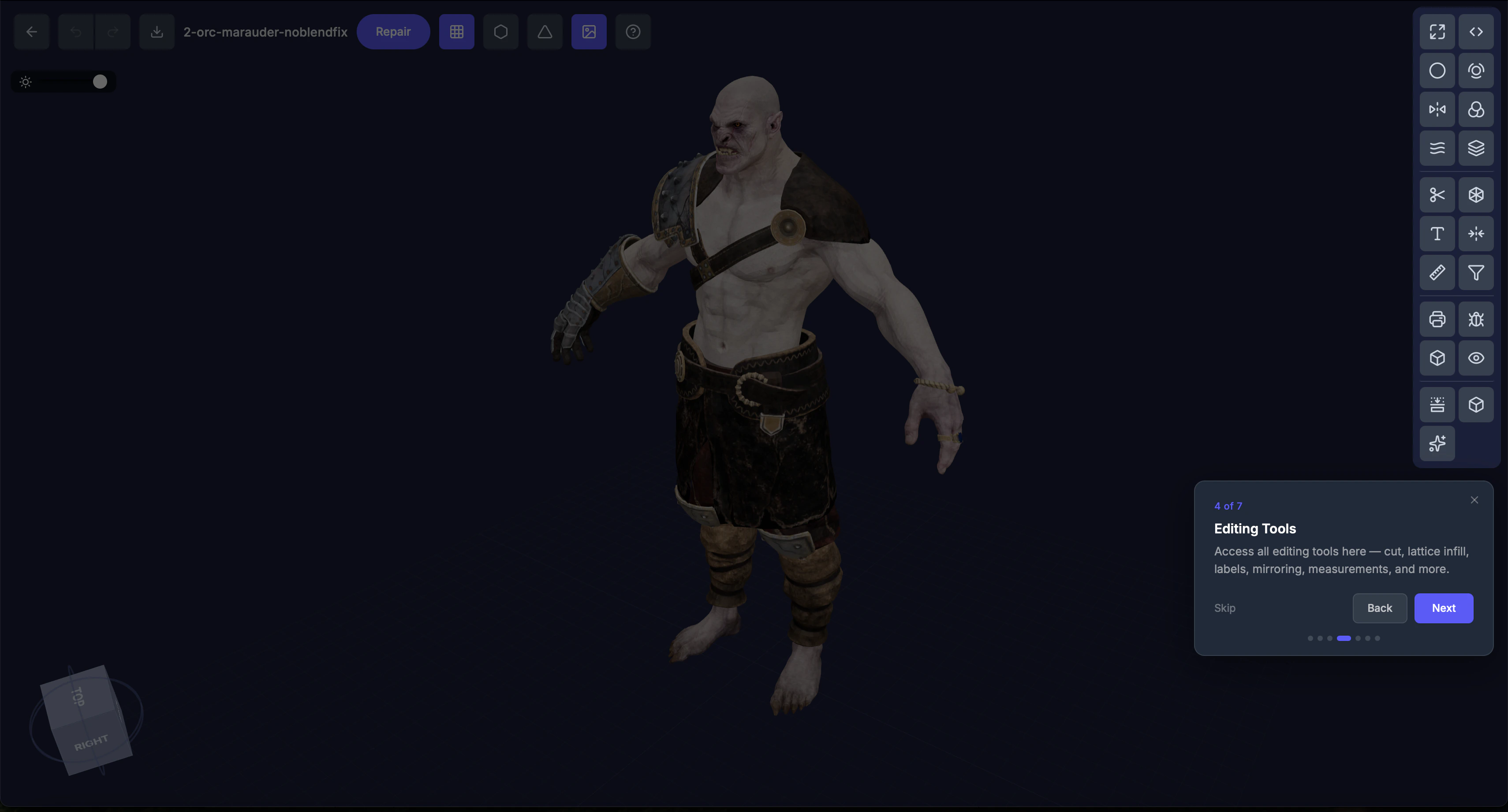
- Header bar — Model name, back button, and file info
- 3D viewport — The main area where your model is displayed. Rotate, pan, and zoom to inspect from every angle.
- Toolbar — Right side, organized into three groups: Pipeline Tools, Interactive Tools, and Inspection Tools
- Settings panel — Opens on the right when you select a tool. Configure options here.
How to open the editor
Click View in 3D from any model detail page or repair detail page. The editor loads your model in the viewport.Working with tools
- Click a tool icon in the toolbar — its settings panel opens on the right
- Adjust settings using the sliders, inputs, and toggles
- Apply the tool (for interactive tools) or the settings carry over to the next repair (for pipeline tools)
All interactive tools work on unrepaired models. The only exception is Lattice, which dims when the current model is the output of another interactive tool — it can only be applied to the original model or a repair output. Lattice is also unavailable for models larger than 635 mm (25 in) on the longest axis.