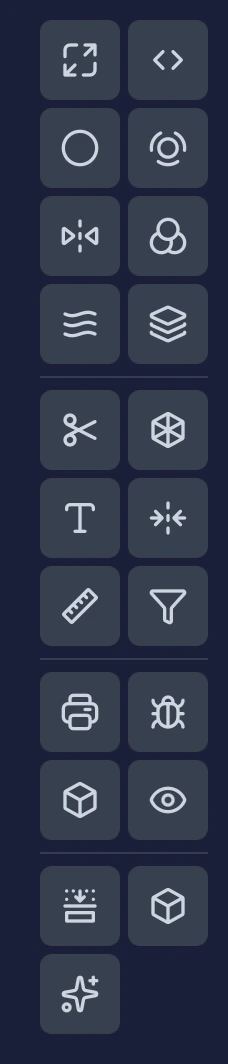
Pipeline Tools (top)
These settings affect the repair process. Adjust them before running a repair.Interactive Tools (middle)
These tools modify your model directly. Use them after repair for additional changes.Inspection Tools (bottom)
These tools help you analyze and visualize your model without changing it.Bottom row
Separated by a final divider, these are quick actions rather than a tool group.Visual indicators
- Blue highlight — The currently active tool
- Blue dot — A tool whose settings have been customized from defaults
- Dimmed — Only Lattice dims, and only when the loaded model is the output of another tool (a cut, mirror, or label result). Lattice can be applied to the original or a repaired model; every other tool works on any model, repaired or not.