Watching the progress
After you click Repair Model, a full-screen progress overlay appears.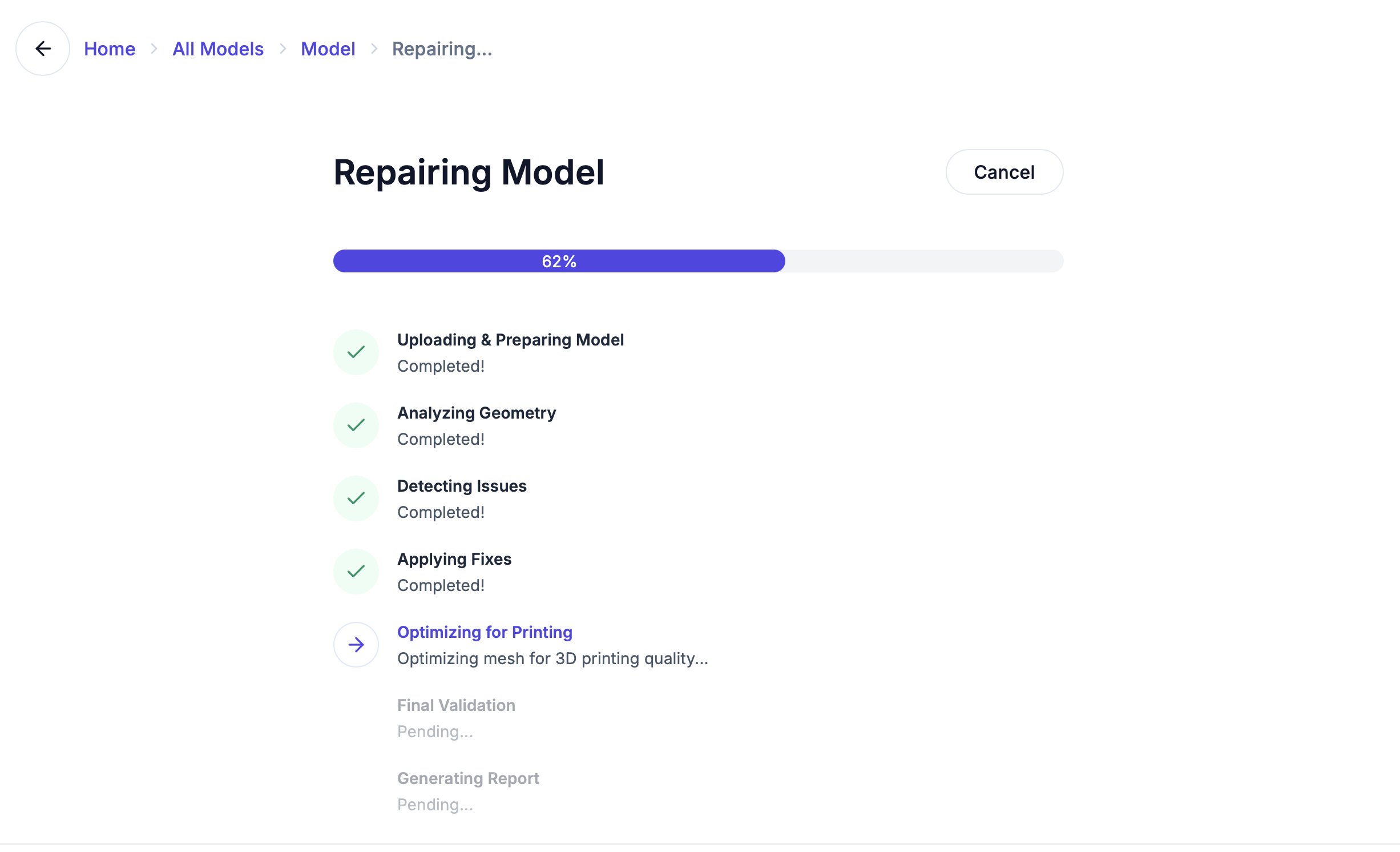
- A progress bar from 0% to 100%
- The current stage name (e.g., “Analyzing Geometry”, “Applying Fixes”)
- A description of what’s happening
Canceling a repair
Click the Cancel button at any time to stop the repair. Your original model is never modified — you can always start over with different settings.When the repair completes
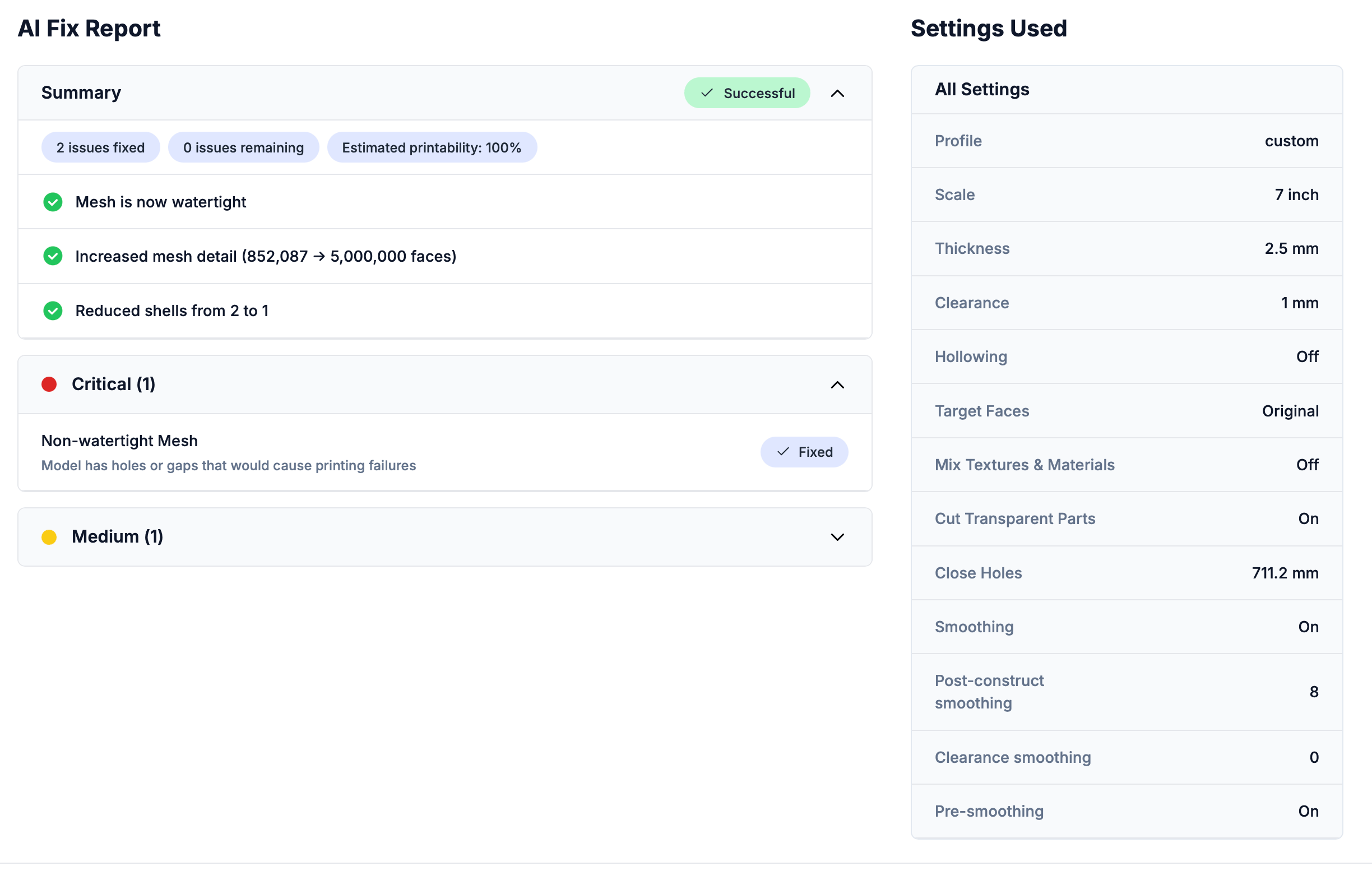
You’re automatically taken to the repair detail page where you can:- View the AI fix report — what was found and what was fixed
- Compare original and repaired models side by side
- Download the result in your preferred format
- Open the repaired model in the 3D editor for further modifications
If a repair fails
Occasionally a repair may not complete successfully. If this happens:- Adjust the Custom Settings (thickness, clearance, or smoothing) and click Re-Repair on the detail page to try again
- Check the failing stage shown in the red failure banner for a clue about what went wrong
- Try a different model type preset
- Check if your model file is corrupted by opening it in another 3D viewer
- See Troubleshooting for more solutions
Your original model is always preserved. Repairs create a new copy — they never modify your upload.