

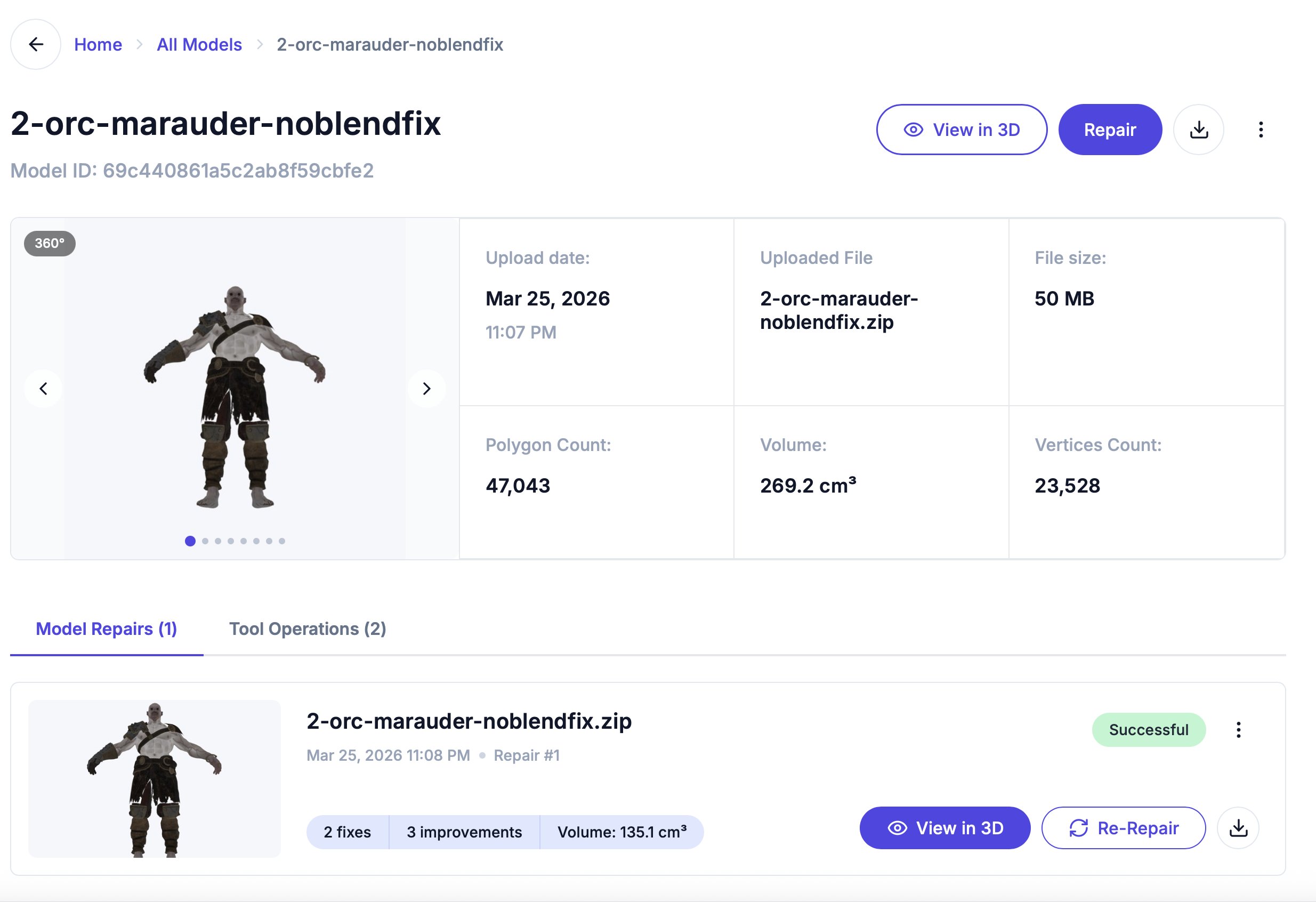
Header
At the top you’ll find:- Model name and ID
- View in 3D — Opens the 3D editor
- Repair — Opens the repair dialog
- Download — Downloads the original uploaded file
- More options (three dots) — Delete model
Model preview and specs
The left side shows a 360° thumbnail carousel — click the arrows to see the model from different angles. The right side shows key stats in a grid:- Upload date — When the model was uploaded, with the upload time on the line below
- Uploaded File — The original file name
- File size — Original file size
- Polygon Count — Total triangle count
- Volume — Calculated volume in cm³
- Vertices Count — Total vertex count
Polygon Count, Volume, and Vertices Count show Analyzing… until geometry analysis finishes. For surface area and bounding-box dimensions, open the model in the 3D editor and check the Object Info panel.
Tabs
Model Repairs
A list of every repair operation run on this model. Each entry shows:- Repair number and date
- Status badge (completed, failed, in progress)
- Number of fixes applied
- Output file size and volume
- View Progress — Shown while a repair is still processing; opens its progress page
- View in 3D — Opens the before/after split view in the editor (disabled for failed repairs)
- Re-Repair — Opens the repair detail page
- Download — Downloads the repaired file (disabled for failed repairs)
- More options (three dots) — Delete this repair