What repair does
- Fills holes and gaps in the surface so your model is completely sealed
- Thickens thin walls that would break during printing
- Removes floating debris and disconnected fragments
- Fixes surface errors like inside-out faces and overlapping geometry
- Optimizes geometry to reduce file size without losing visible detail
- Calculates volume and dimensions for cost estimation
Repair stages
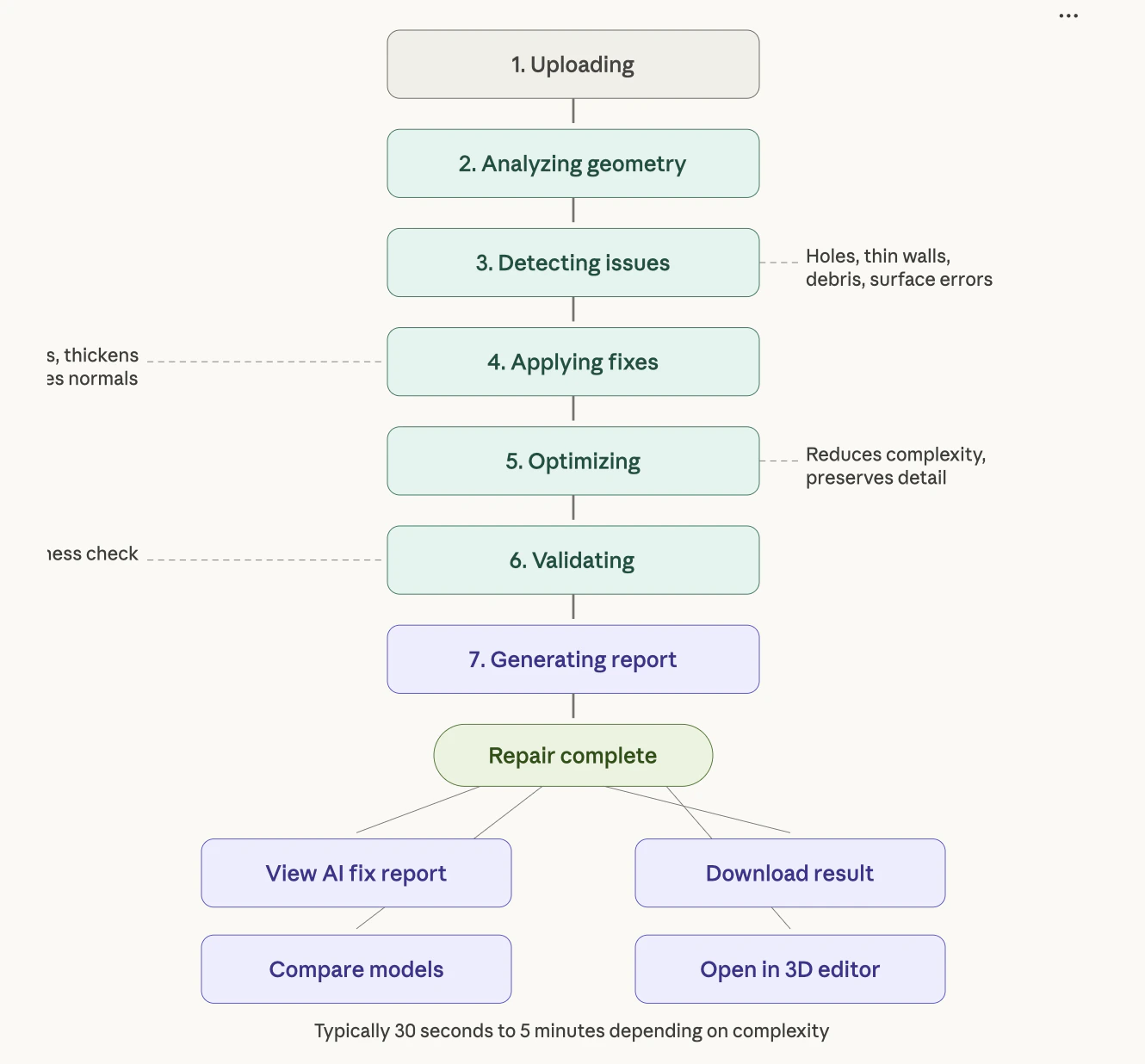
When you start a repair, you see a progress bar moving through these stages:- Uploading — Sending your model to our servers
- Analyzing geometry — Scanning for structural issues
- Detecting issues — Identifying thin walls, holes, and non-printable areas
- Applying fixes — Automatically repairing all detected issues
- Optimizing — Reducing complexity while preserving detail
- Validating — Final check to ensure print-readiness
- Generating report — Creating the AI fix report
The entire process usually takes 30 seconds to 5 minutes depending on model complexity; DICOM repairs scale with the number of selected segments.
What happens after repair
Once complete, you’re taken to the repair detail page where you can:- View the AI fix report explaining what was found and fixed
- Compare the original and repaired models side by side
- Download the result in OBJ, STL, GLB, or 3MF
- Open the repaired model in the 3D editor for further modifications