1
Click Repair
From your model card on the home page, or from the model detail page, click the Repair button. The repair dialog opens.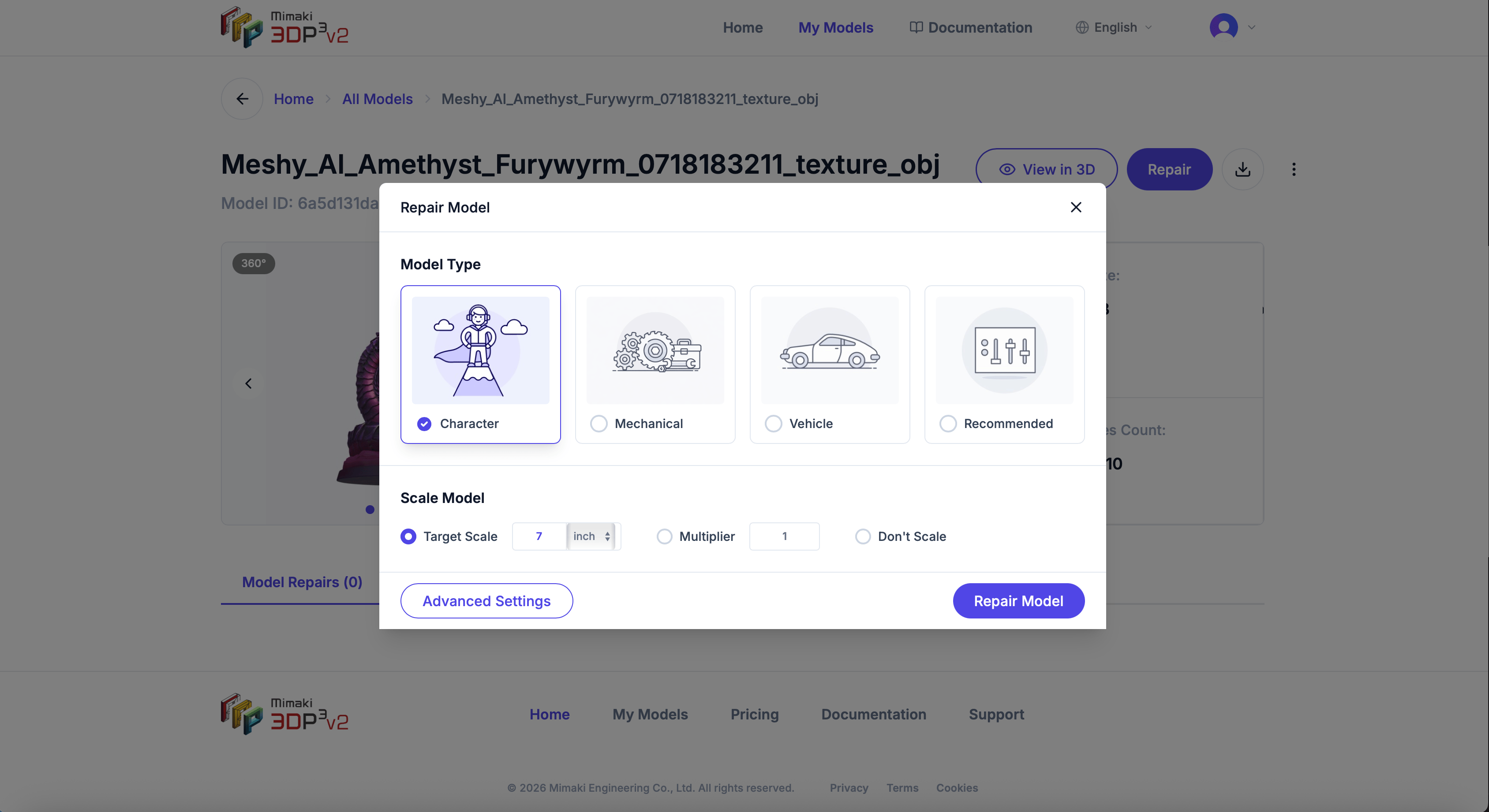
2
Choose a model type
Select the preset that best matches your model:
- Character — Figurines, characters, organic shapes
- Mechanical — Engineering parts, brackets, functional prints
- Vehicle — Cars, aircraft, vehicles
- Custom — No preset, full control over settings
3
Set the scale
Choose how to size your model:
- Target dimension — Set the longest side to a specific size (e.g., 6 inches)
- Multiplier — Scale by a factor (e.g., 2x to double the size)
- Don’t scale — Keep the original dimensions
4
Start the repair
Click Repair Model. A progress overlay shows the current stage and completion percentage.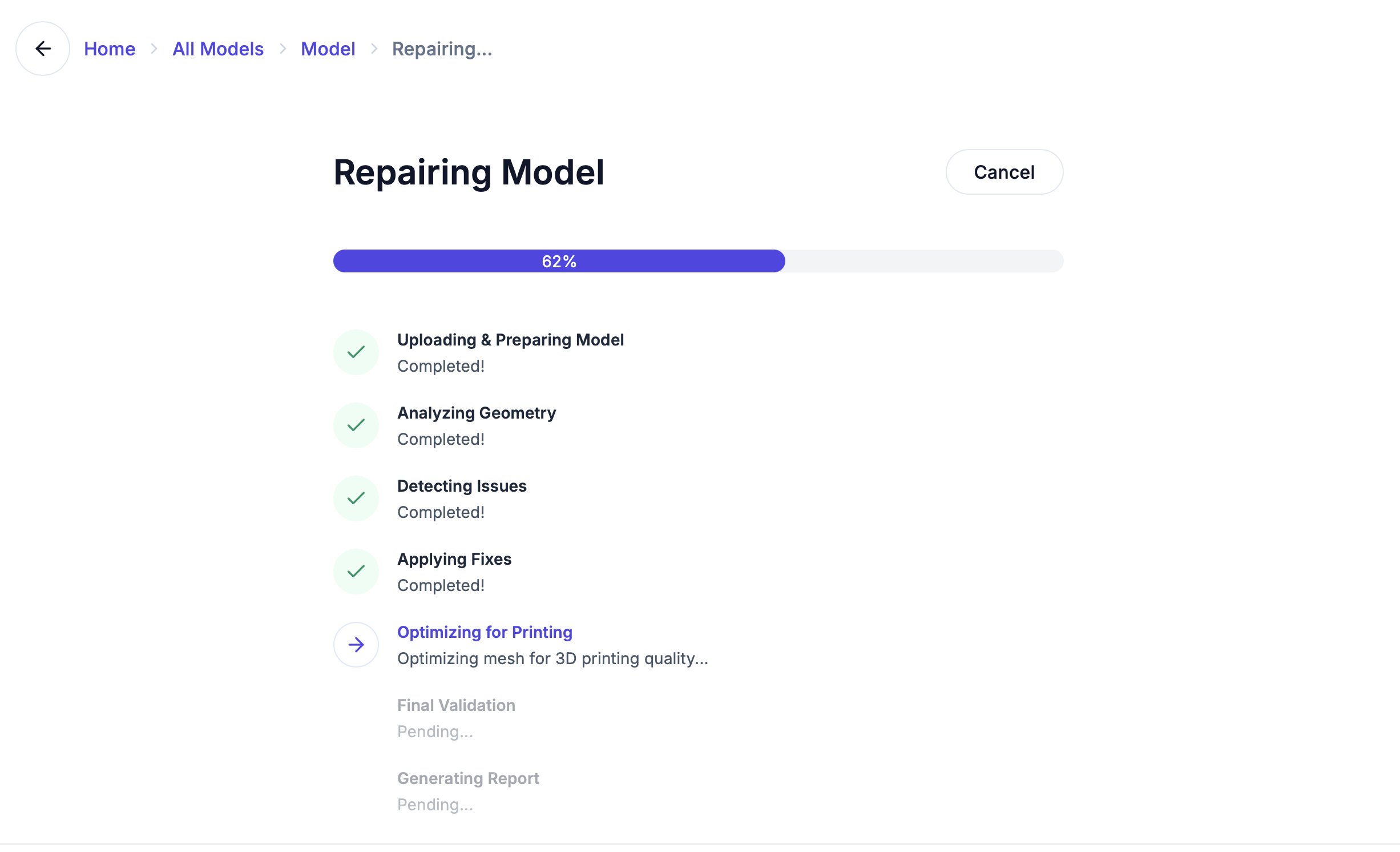
Your first 2 repairs are free. After that, you need a subscription to continue repairing. See Plans and pricing.