1
Go to the repair detail page
You’re automatically taken here after a repair finishes. You can also find it from the model detail page under the “Model Repairs” tab.
2
Click Download
Click the round Download button in the header area. This downloads a bundle containing every format (GLB, OBJ, STL, and 3MF) in a single click — the file opens in a new tab.
3
Need a single format? Open the 3D editor
The repair detail page always downloads all formats together. To grab one specific format, open the result in the 3D editor and use the Export dropdown, which lets you download GLB, OBJ, STL, or 3MF individually (or Export All). Tool operations like cut, lattice, label, and mirror also offer a per-format menu directly on their operation page.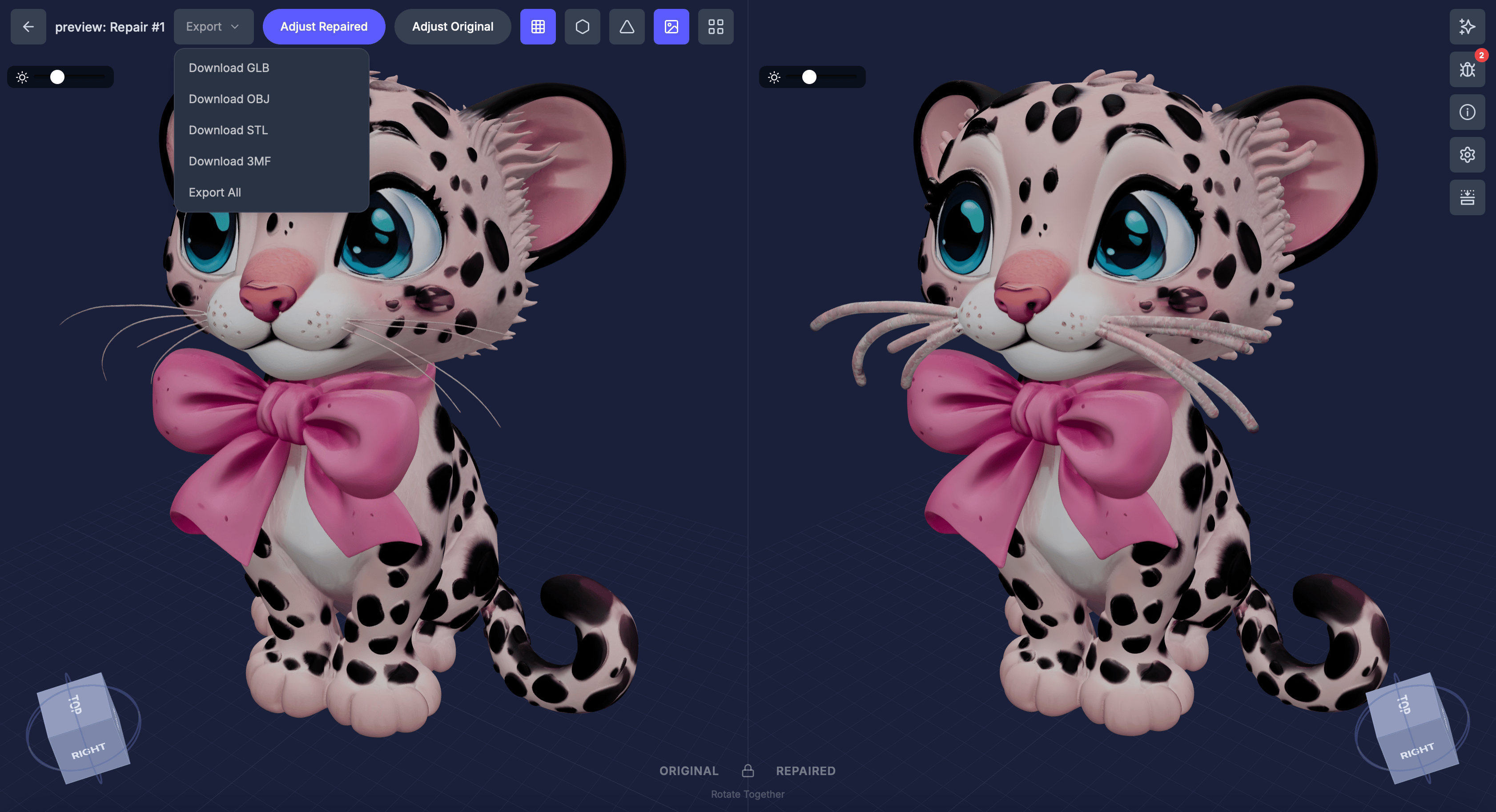
Export formats
You can also download the original (unrepaired) model from the model detail page if you need it.