> ## Documentation Index
> Fetch the complete documentation index at: https://docs.3dpreppro.com/llms.txt
> Use this file to discover all available pages before exploring further.
# 修复进度
> 实时跟踪修复处理过程
## 查看进度
点击**修复模型**后,会出现全屏进度覆盖层。
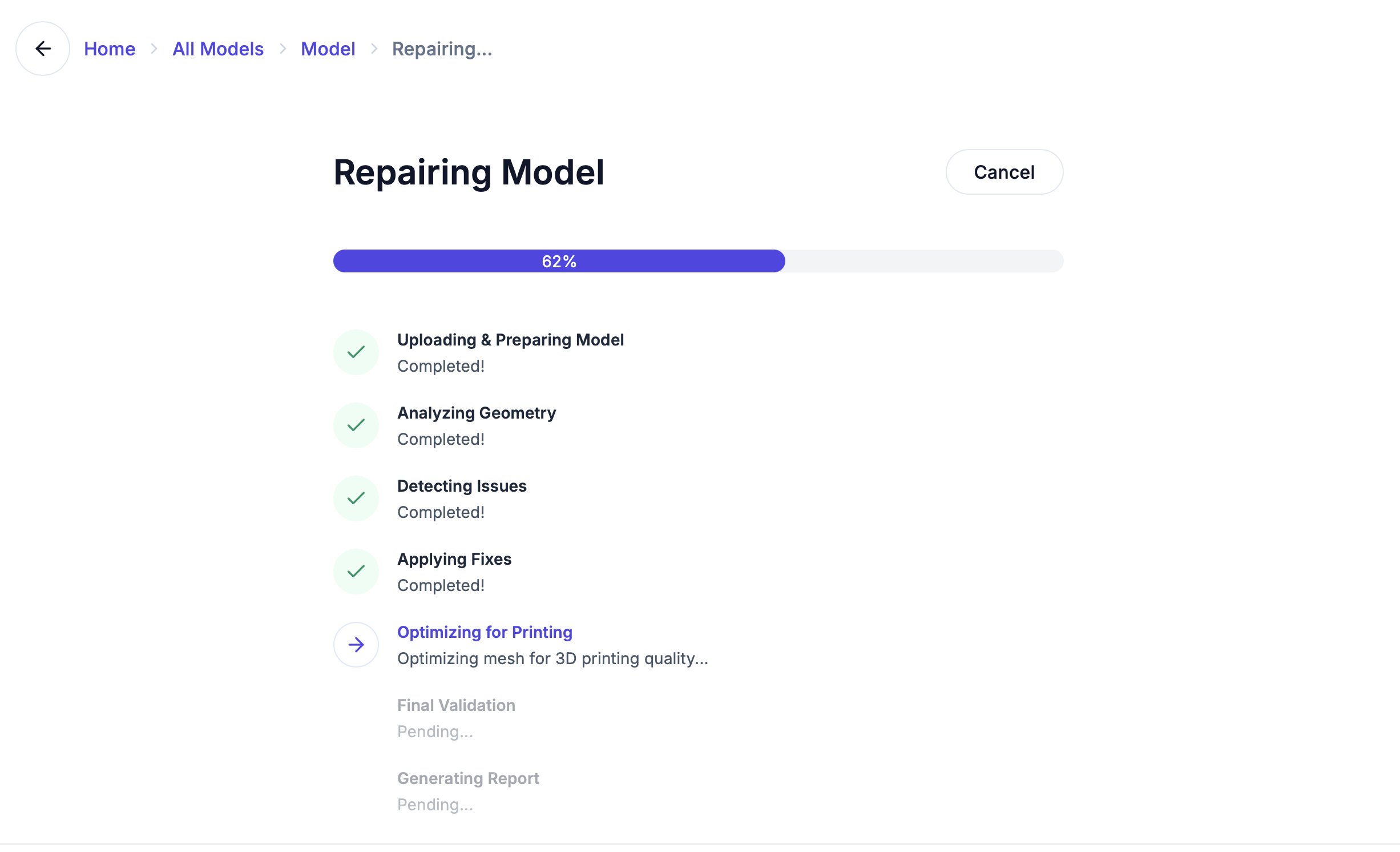 您会看到:
* 从 0% 到 100% 的**进度条**
* **当前阶段名称**(如"分析几何体"、"应用修复")
* 当前操作的**说明**
## 取消修复
随时点击**取消**按钮停止修复。您的原始模型永远不会被修改——您可以随时使用不同的设置重新开始。
## 修复完成时
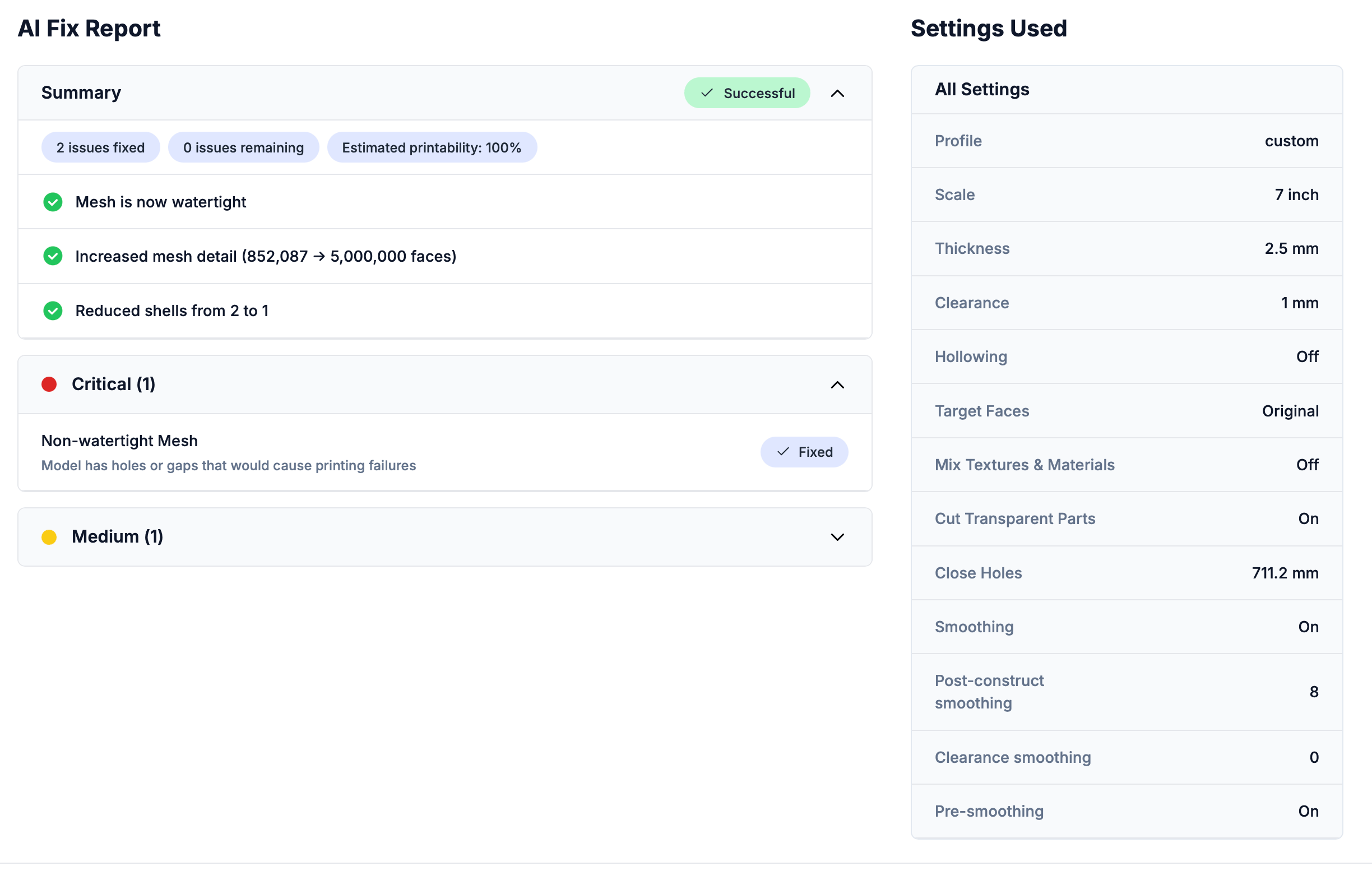
您将自动进入**修复详情页面**,在那里您可以:
* 查看 [AI修复报告](/repair/ai-fix-report) — 了解发现了什么以及修复了什么
* [并排比较](/editor/3d-viewer)原始模型和修复后的模型
* 以您喜欢的格式[下载](/getting-started/download-results)结果
* 在[3D编辑器](/editor/overview)中打开修复后的模型进行进一步修改
您会看到:
* 从 0% 到 100% 的**进度条**
* **当前阶段名称**(如"分析几何体"、"应用修复")
* 当前操作的**说明**
## 取消修复
随时点击**取消**按钮停止修复。您的原始模型永远不会被修改——您可以随时使用不同的设置重新开始。
## 修复完成时
您将自动进入**修复详情页面**,在那里您可以:
* 查看 [AI修复报告](/repair/ai-fix-report) — 了解发现了什么以及修复了什么
* [并排比较](/editor/3d-viewer)原始模型和修复后的模型
* 以您喜欢的格式[下载](/getting-started/download-results)结果
* 在[3D编辑器](/editor/overview)中打开修复后的模型进行进一步修改
 ## 如果修复失败
偶尔修复可能无法成功完成。如果发生这种情况:
* 调整**自定义设置**(厚度、间隙或平滑处理),然后在详情页面点击**重新修复**再试一次
* 查看红色失败横幅中显示的失败阶段,以了解出错原因的线索
* 尝试不同的[模型类型预设](/repair/model-types)
* 在其他3D查看器中打开文件,检查是否有效
* 查看[故障排除](/help/troubleshooting)获取更多解决方案
您的原始模型始终被保留。修复会创建新的副本——永远不会修改您的上传文件。
This documentation is built and hosted on [Mintlify](https://mintlify.com), a developer documentation platform.
## 如果修复失败
偶尔修复可能无法成功完成。如果发生这种情况:
* 调整**自定义设置**(厚度、间隙或平滑处理),然后在详情页面点击**重新修复**再试一次
* 查看红色失败横幅中显示的失败阶段,以了解出错原因的线索
* 尝试不同的[模型类型预设](/repair/model-types)
* 在其他3D查看器中打开文件,检查是否有效
* 查看[故障排除](/help/troubleshooting)获取更多解决方案
您的原始模型始终被保留。修复会创建新的副本——永远不会修改您的上传文件。
This documentation is built and hosted on [Mintlify](https://mintlify.com), a developer documentation platform.