> ## Documentation Index
> Fetch the complete documentation index at: https://docs.3dpreppro.com/llms.txt
> Use this file to discover all available pages before exploring further.
# 上传您的第一个模型
> 拖放 3D 文件即可开始
登录后,您将到达主页,上传区域位于页面中央。
将您的 3D 文件直接拖到上传区域 — 或点击 **浏览** 从计算机中选择文件。
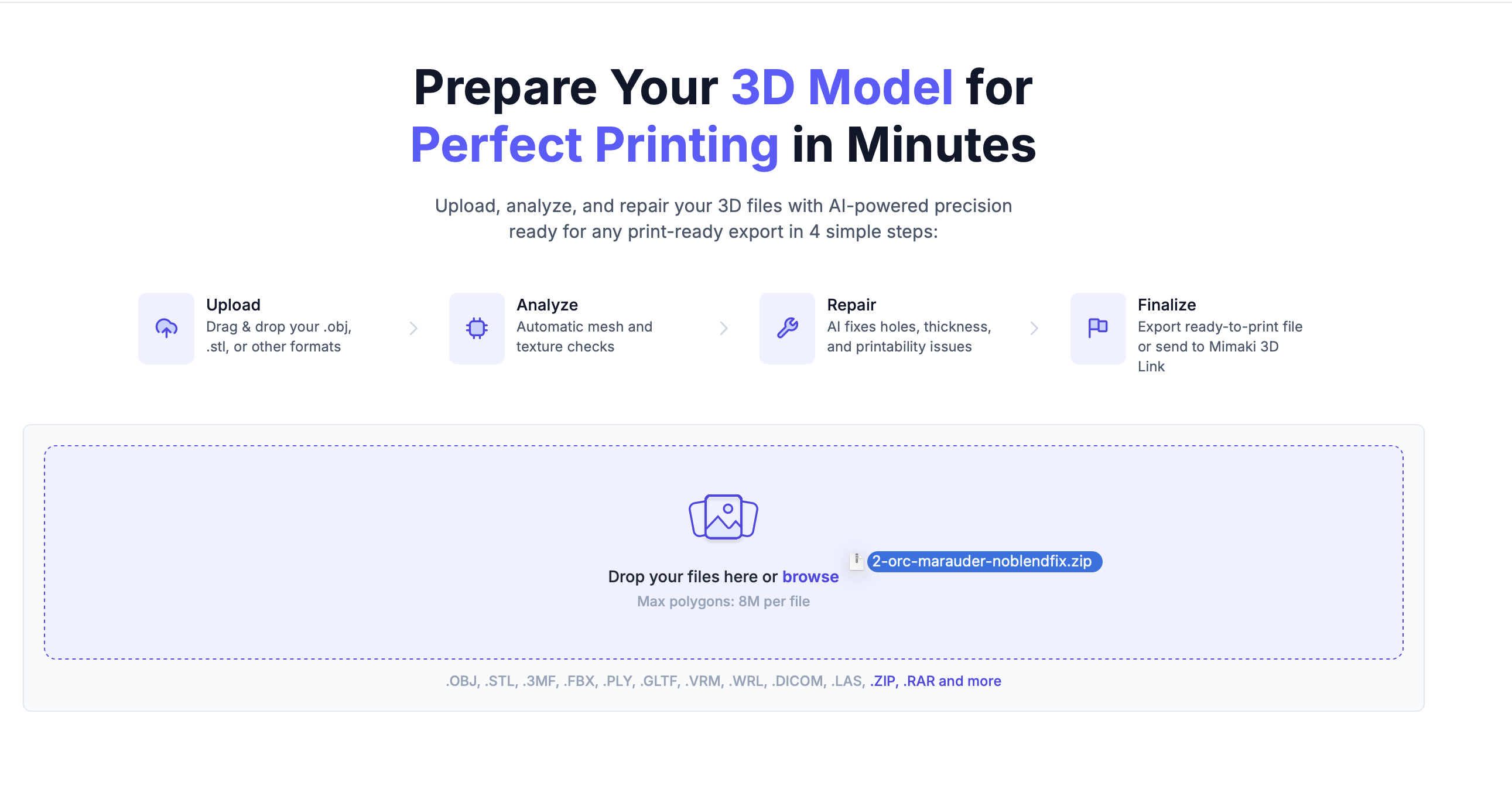 您的模型将被上传并自动分析。几秒钟内,360° 缩略图预览出现,您的模型显示在最近上传部分。
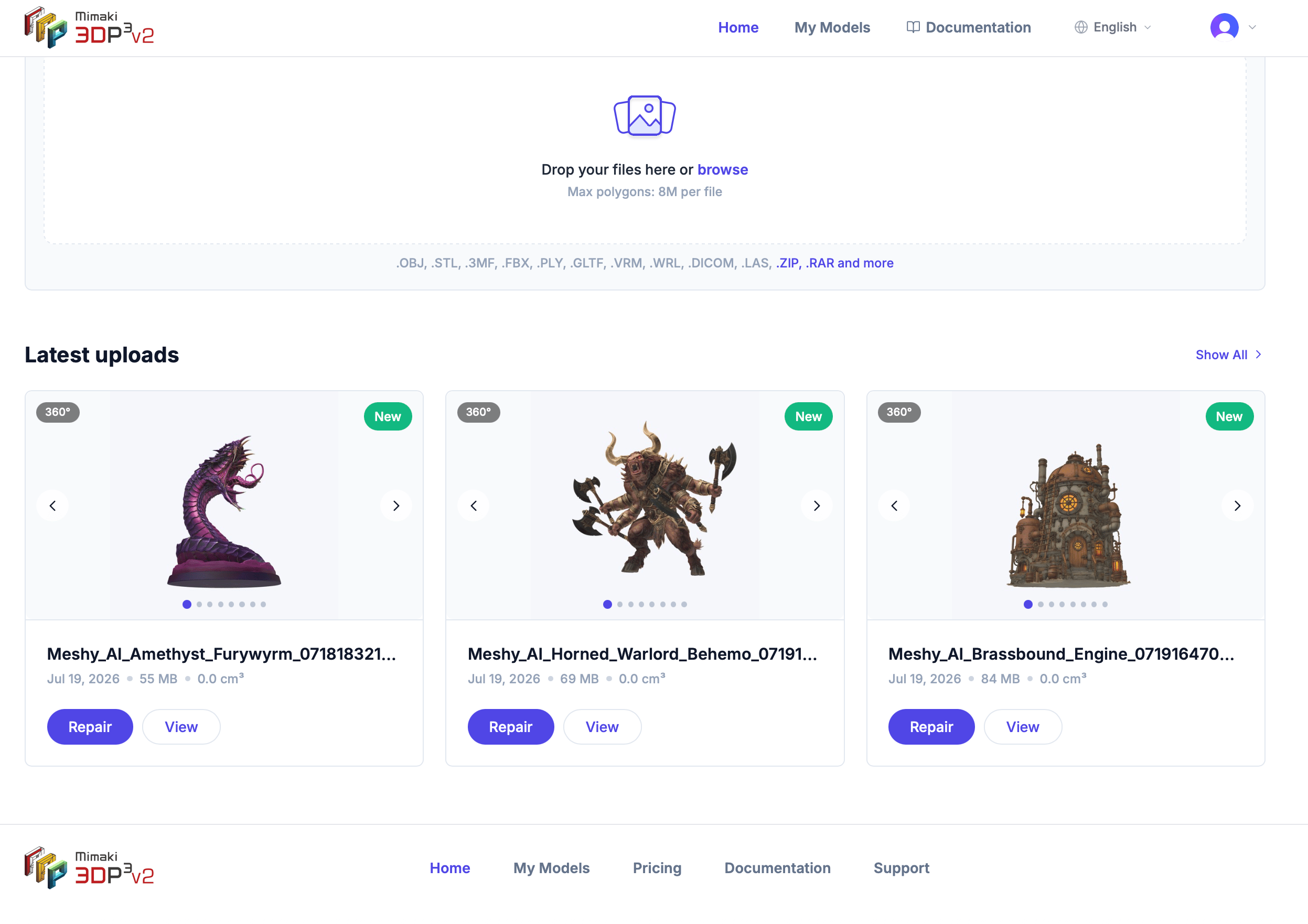 **支持的格式:** OBJ、STL、3MF、FBX、PLY、GLTF/GLB、VRM、WRL、DICOM (.dcm)、LAS/LAZ。您还可以上传 **ZIP** 和 **RAR** 压缩文件 — 我们会自动提取其中的 3D 文件。
每个文件最大 **800 万多边形**。对于更大的模型,请考虑在建模软件中减少多边形数量后再上传。
**DICOM**(医学影像)文件上传后会打开 **DICOM 分割** 对话框,您可以在其中定义组织密度 (HU) 范围,将扫描分割成独立的 3D 部件。必须完成此步骤后才能运行分析。**LAS/LAZ**(LiDAR 点云)文件直接上传,无需额外的配置步骤。详情请参阅 [上传文件](/models/uploading-files)。
This documentation is built and hosted on [Mintlify](https://mintlify.com), a developer documentation platform.
**支持的格式:** OBJ、STL、3MF、FBX、PLY、GLTF/GLB、VRM、WRL、DICOM (.dcm)、LAS/LAZ。您还可以上传 **ZIP** 和 **RAR** 压缩文件 — 我们会自动提取其中的 3D 文件。
每个文件最大 **800 万多边形**。对于更大的模型,请考虑在建模软件中减少多边形数量后再上传。
**DICOM**(医学影像)文件上传后会打开 **DICOM 分割** 对话框,您可以在其中定义组织密度 (HU) 范围,将扫描分割成独立的 3D 部件。必须完成此步骤后才能运行分析。**LAS/LAZ**(LiDAR 点云)文件直接上传,无需额外的配置步骤。详情请参阅 [上传文件](/models/uploading-files)。
This documentation is built and hosted on [Mintlify](https://mintlify.com), a developer documentation platform.