> ## Documentation Index
> Fetch the complete documentation index at: https://docs.3dpreppro.com/llms.txt
> Use this file to discover all available pages before exploring further.
# 切片视图
> 通过横截面切割查看模型内部
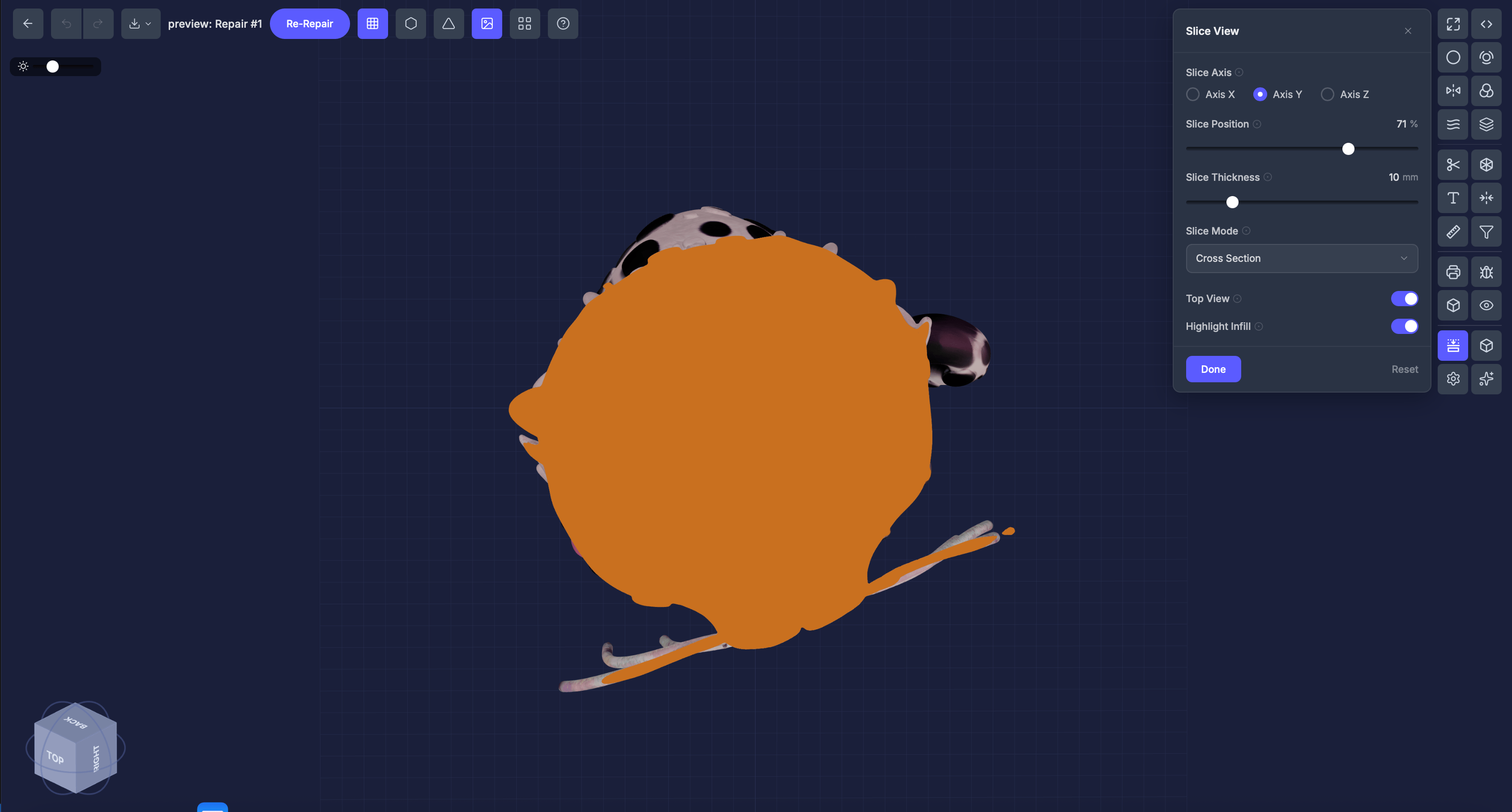 切片视图对模型进行虚拟横截面切割,让您看到内部结构。在挖空或添加晶格填充后特别有用。
## 何时使用此工具
* 验证[挖空](/editor/tools/hollow)是否创建了均匀的壁厚
* 检查[晶格填充](/editor/tools/lattice)在模型内部是否正确
* 检查内部几何体是否有意外特征
* 可视化模型切片后的打印效果
## 设置
### 切片轴
**X**、**Y** 或 **Z** — 切割方向。
### 位置
拖动滑块将切片平面移过模型。
### 切片厚度 (mm)
可见切片的厚度。范围 **1–50 mm**(默认 **10**)。
### 高亮填充
开关(默认开启),将横截面覆盖为钢蓝色,使切割面更加突出。
## 操作步骤
在检查工具部分点击**切片视图**。
选择 X、Y 或 Z。
在模型中移动以检查不同的横截面。
保持**高亮填充**开启,将横截面覆盖为钢蓝色,以更清晰地可视化切割边界。
## 提示
* 尝试**所有三个轴**以全面了解内部结构
* 应用晶格后,切片检查图案是否均匀填充内部
* 配合[对象信息](/editor/tools/object-info)使用以了解模型的内部结构
This documentation is built and hosted on [Mintlify](https://mintlify.com), a developer documentation platform.
切片视图对模型进行虚拟横截面切割,让您看到内部结构。在挖空或添加晶格填充后特别有用。
## 何时使用此工具
* 验证[挖空](/editor/tools/hollow)是否创建了均匀的壁厚
* 检查[晶格填充](/editor/tools/lattice)在模型内部是否正确
* 检查内部几何体是否有意外特征
* 可视化模型切片后的打印效果
## 设置
### 切片轴
**X**、**Y** 或 **Z** — 切割方向。
### 位置
拖动滑块将切片平面移过模型。
### 切片厚度 (mm)
可见切片的厚度。范围 **1–50 mm**(默认 **10**)。
### 高亮填充
开关(默认开启),将横截面覆盖为钢蓝色,使切割面更加突出。
## 操作步骤
在检查工具部分点击**切片视图**。
选择 X、Y 或 Z。
在模型中移动以检查不同的横截面。
保持**高亮填充**开启,将横截面覆盖为钢蓝色,以更清晰地可视化切割边界。
## 提示
* 尝试**所有三个轴**以全面了解内部结构
* 应用晶格后,切片检查图案是否均匀填充内部
* 配合[对象信息](/editor/tools/object-info)使用以了解模型的内部结构
This documentation is built and hosted on [Mintlify](https://mintlify.com), a developer documentation platform.