> ## Documentation Index
> Fetch the complete documentation index at: https://docs.3dpreppro.com/llms.txt
> Use this file to discover all available pages before exploring further.
# 挖空
> 创建中空内部以节省材料并降低成本
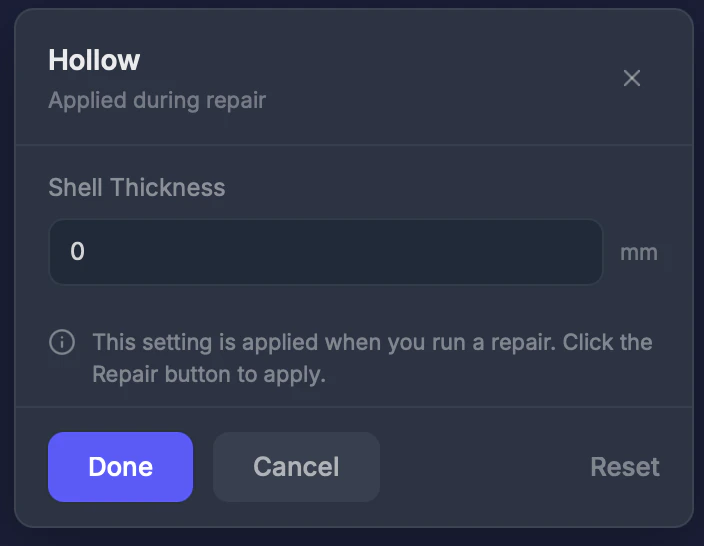 挖空在模型内部创建空腔,只保留指定厚度的外壳。这大幅减少材料用量、打印成本和重量。
## 何时使用此工具
对于实心打印会浪费材料的大型模型,或者当您想在不改变外观的情况下减轻重量时。
## 设置
### 壳体厚度 (0–20 mm)
外壁应有多厚。设为 **0** 保持模型实心(禁用)。**默认值:0(禁用)。**
## 操作步骤
在工具栏中点击**挖空**。
输入毫米值。2–3 mm 适用于大多数全彩打印机。
挖空在修复过程中应用。
## 提示
* **2–3 mm** 壳体厚度是全彩打印机的典型值
* 确保壳体至少与[壁厚](/editor/tools/thickness)设置一样厚
* 修复后使用[切片视图](/editor/tools/slice-view)工具验证中空内部是否正确
过薄的壳体(低于 1 mm)可能在打印后不够坚固以保持形状。
This documentation is built and hosted on [Mintlify](https://mintlify.com), a developer documentation platform.
挖空在模型内部创建空腔,只保留指定厚度的外壳。这大幅减少材料用量、打印成本和重量。
## 何时使用此工具
对于实心打印会浪费材料的大型模型,或者当您想在不改变外观的情况下减轻重量时。
## 设置
### 壳体厚度 (0–20 mm)
外壁应有多厚。设为 **0** 保持模型实心(禁用)。**默认值:0(禁用)。**
## 操作步骤
在工具栏中点击**挖空**。
输入毫米值。2–3 mm 适用于大多数全彩打印机。
挖空在修复过程中应用。
## 提示
* **2–3 mm** 壳体厚度是全彩打印机的典型值
* 确保壳体至少与[壁厚](/editor/tools/thickness)设置一样厚
* 修复后使用[切片视图](/editor/tools/slice-view)工具验证中空内部是否正确
过薄的壳体(低于 1 mm)可能在打印后不够坚固以保持形状。
This documentation is built and hosted on [Mintlify](https://mintlify.com), a developer documentation platform.