> ## Documentation Index
> Fetch the complete documentation index at: https://docs.3dpreppro.com/llms.txt
> Use this file to discover all available pages before exploring further.
# Scale settings
> Resize your model to the exact print dimensions you need
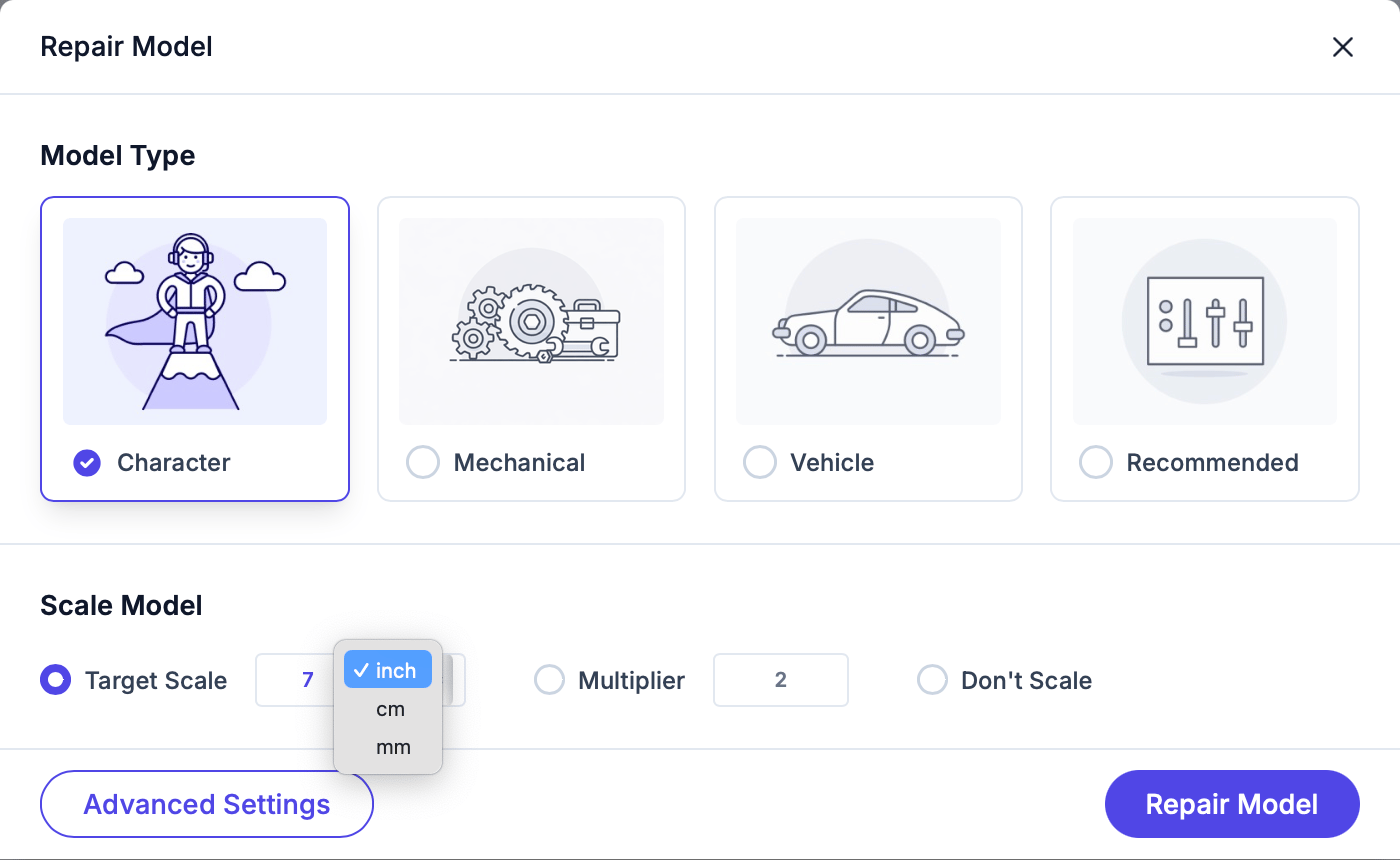
Scale settings let you resize your model during repair. Choose from three modes:
Set the longest side of your model to a specific size. For example, "6 inches tall" or "150 mm wide".
Choose your unit: **millimeters (mm)**, **centimeters (cm)**, or **inches**.
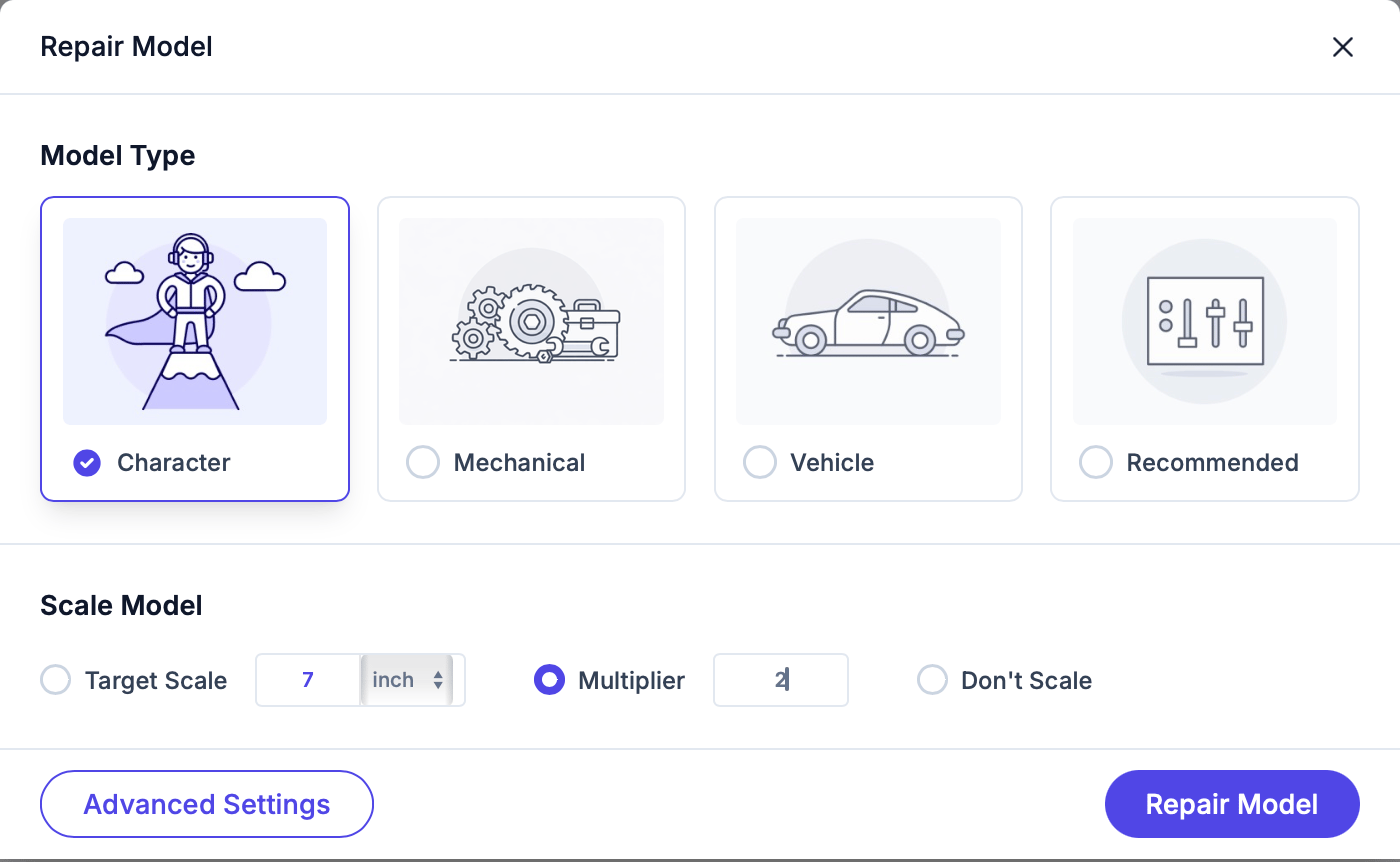
 Scale by a factor. For example:
* **2x** doubles the size
* **0.5x** halves it
* **1x** keeps the same size
Scale by a factor. For example:
* **2x** doubles the size
* **0.5x** halves it
* **1x** keeps the same size
 Keep the model at its original dimensions. Use this when your model is already at the correct size.
Double-check your scale settings before repairing. An incorrectly scaled model wastes printing material and time.
If you're printing on a Mimaki full-color printer, the print volume is treated as up to about **20 inches (508 mm)** on the longest side. Some features, such as lattice infill, are blocked above **25 inches (635 mm)**.
Keep the model at its original dimensions. Use this when your model is already at the correct size.
Double-check your scale settings before repairing. An incorrectly scaled model wastes printing material and time.
If you're printing on a Mimaki full-color printer, the print volume is treated as up to about **20 inches (508 mm)** on the longest side. Some features, such as lattice infill, are blocked above **25 inches (635 mm)**.