> ## Documentation Index
> Fetch the complete documentation index at: https://docs.3dpreppro.com/llms.txt
> Use this file to discover all available pages before exploring further.
# Repair progress
> Track your repair in real time as it processes
## Watching the progress
After you click **Repair Model**, a full-screen progress overlay appears.
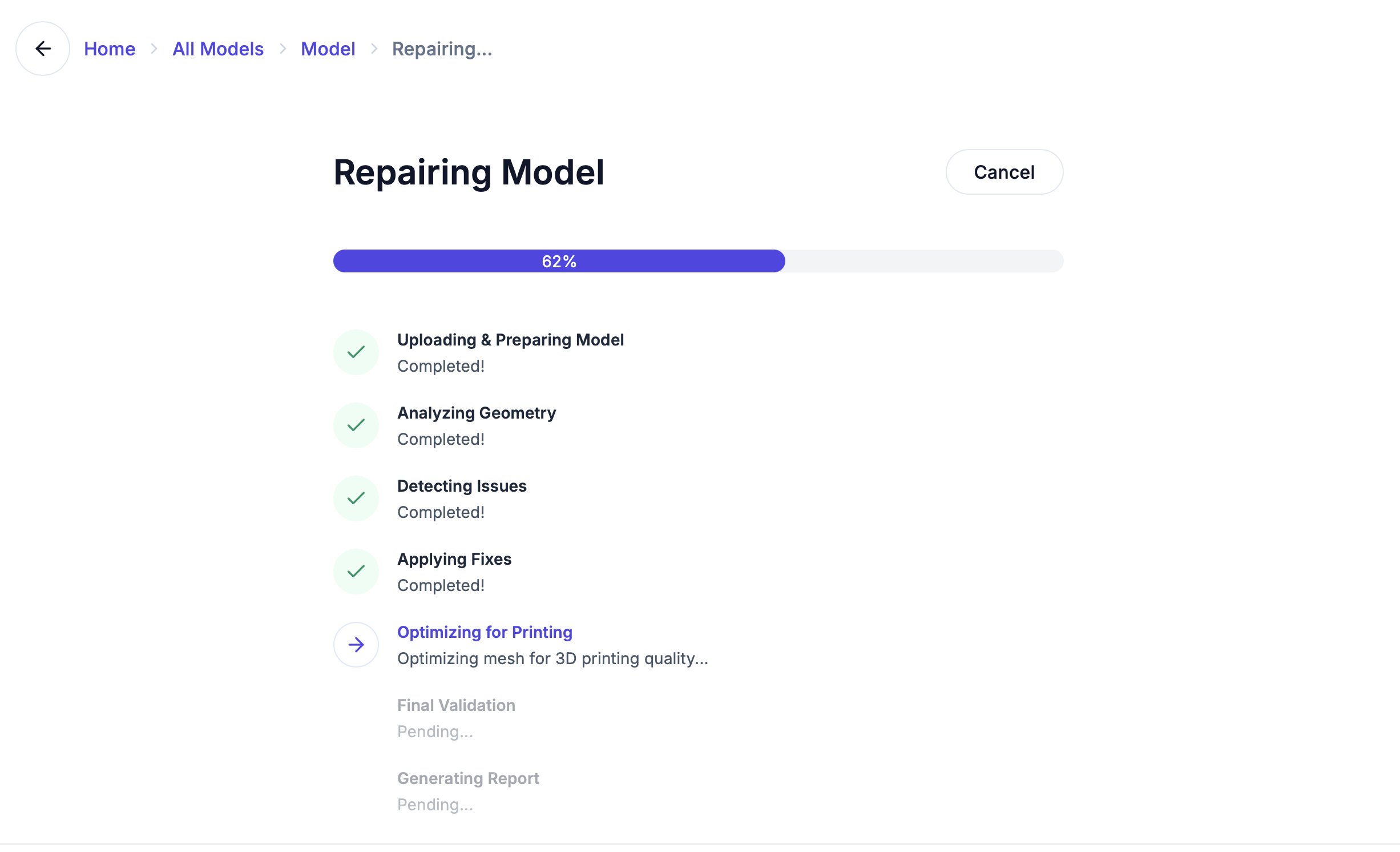 You'll see:
* A **progress bar** from 0% to 100%
* The **current stage name** (e.g., "Analyzing Geometry", "Applying Fixes")
* A **description** of what's happening
## Canceling a repair
Click the **Cancel** button at any time to stop the repair. Your original model is never modified — you can always start over with different settings.
## When the repair completes
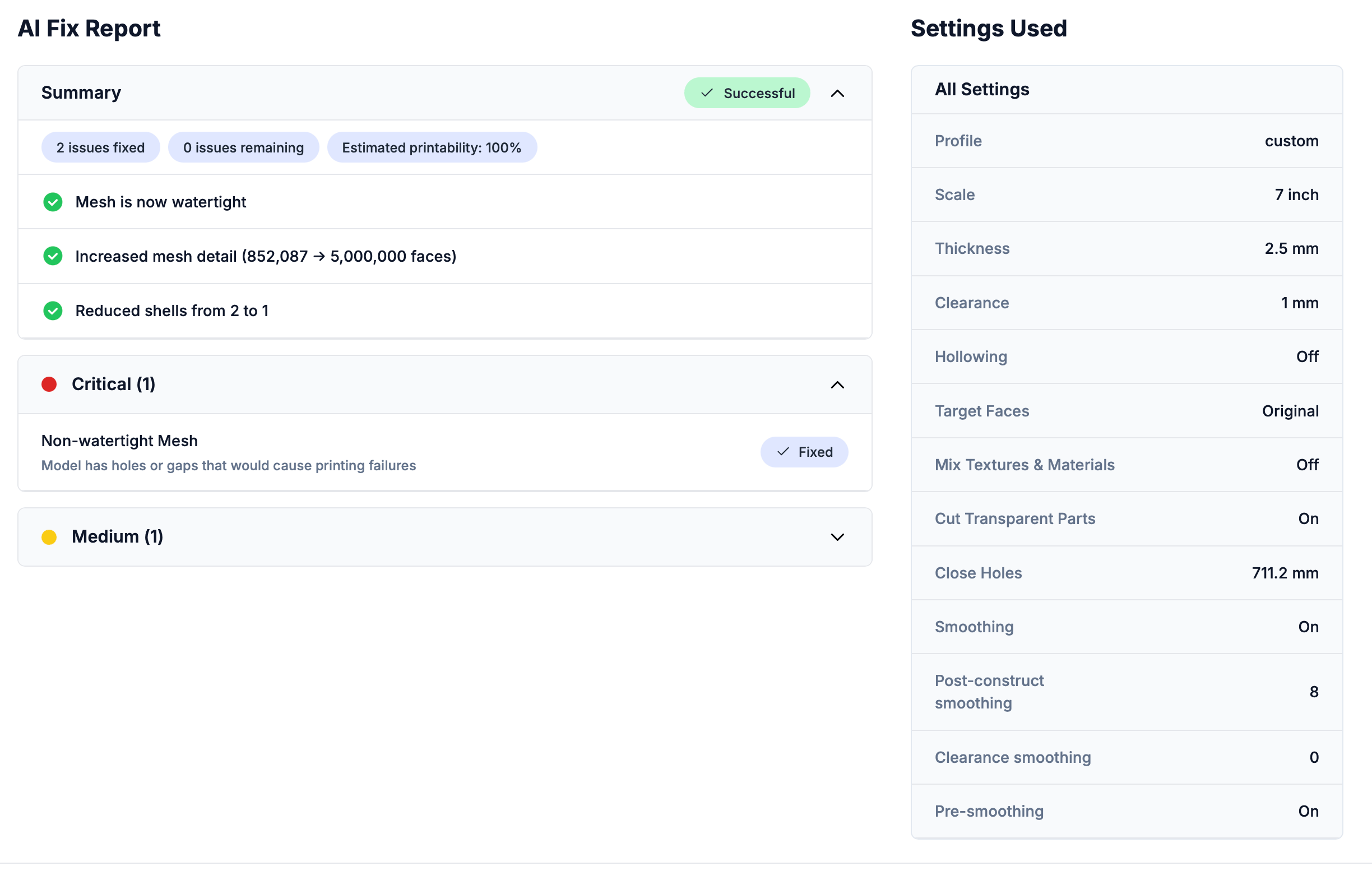
You're automatically taken to the **repair detail page** where you can:
* View the [AI fix report](/repair/ai-fix-report) — what was found and what was fixed
* Compare original and repaired models [side by side](/editor/3d-viewer)
* [Download](/getting-started/download-results) the result in your preferred format
* Open the repaired model in the [3D editor](/editor/overview) for further modifications
You'll see:
* A **progress bar** from 0% to 100%
* The **current stage name** (e.g., "Analyzing Geometry", "Applying Fixes")
* A **description** of what's happening
## Canceling a repair
Click the **Cancel** button at any time to stop the repair. Your original model is never modified — you can always start over with different settings.
## When the repair completes
You're automatically taken to the **repair detail page** where you can:
* View the [AI fix report](/repair/ai-fix-report) — what was found and what was fixed
* Compare original and repaired models [side by side](/editor/3d-viewer)
* [Download](/getting-started/download-results) the result in your preferred format
* Open the repaired model in the [3D editor](/editor/overview) for further modifications
 ## If a repair fails
Occasionally a repair may not complete successfully. If this happens:
* Adjust the **Custom Settings** (thickness, clearance, or smoothing) and click **Re-Repair** on the detail page to try again
* Check the failing stage shown in the red failure banner for a clue about what went wrong
* Try a different [model type preset](/repair/model-types)
* Check if your model file is corrupted by opening it in another 3D viewer
* See [Troubleshooting](/help/troubleshooting) for more solutions
Your original model is always preserved. Repairs create a new copy — they never modify your upload.
## If a repair fails
Occasionally a repair may not complete successfully. If this happens:
* Adjust the **Custom Settings** (thickness, clearance, or smoothing) and click **Re-Repair** on the detail page to try again
* Check the failing stage shown in the red failure banner for a clue about what went wrong
* Try a different [model type preset](/repair/model-types)
* Check if your model file is corrupted by opening it in another 3D viewer
* See [Troubleshooting](/help/troubleshooting) for more solutions
Your original model is always preserved. Repairs create a new copy — they never modify your upload.