> ## Documentation Index
> Fetch the complete documentation index at: https://docs.3dpreppro.com/llms.txt
> Use this file to discover all available pages before exploring further.
# Model type presets
> Choose a preset that matches your model for best results
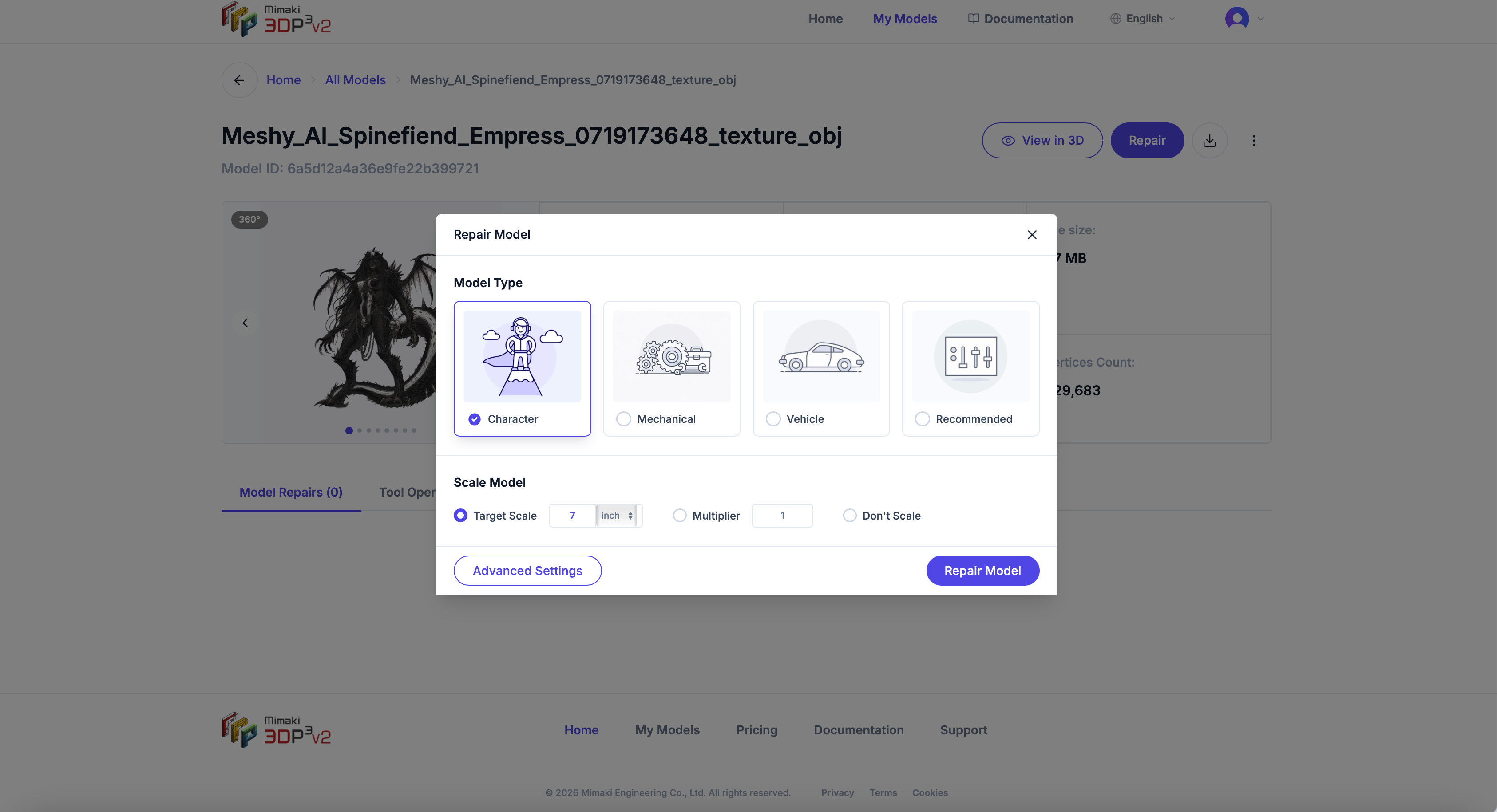 When you start a repair, the first step is choosing a model type preset. Each preset optimizes the repair process for a specific kind of 3D model.
Optimized for figurines, characters, and organic shapes. Preserves fine details like facial features, hair, and clothing folds. Uses a thinner minimum wall thickness (0.7 mm) to hold delicate geometry, a 1.5 mm clearance gap for fusing, transparent-texture cutting, and texture/material mixing. It applies no smoothing — smoothing is a separate opt-in toggle.
Best for engineering parts, brackets, and functional prints. Prioritizes sharp edges and flat surfaces. Keeps precise dimensions for parts that need to fit together.
Tuned for cars, aircraft, and other vehicle models. Balances smooth body curves with structural detail like wheels and panels.
No preset optimizations — you have full control over every setting. Good starting point if your model doesn't fit the other categories.
Not sure which to pick? Start with **Custom** — it works well for most models. You can always re-repair with a different preset later.
Once your model has been analyzed, a **Recommended** card replaces the **Custom** card in the model type list. It's pre-selected when the repair dialog opens and pre-fills every repair setting — including turning Smoothing on — from the analysis. Under the hood, a recommended repair runs as a custom repair.
When you start a repair, the first step is choosing a model type preset. Each preset optimizes the repair process for a specific kind of 3D model.
Optimized for figurines, characters, and organic shapes. Preserves fine details like facial features, hair, and clothing folds. Uses a thinner minimum wall thickness (0.7 mm) to hold delicate geometry, a 1.5 mm clearance gap for fusing, transparent-texture cutting, and texture/material mixing. It applies no smoothing — smoothing is a separate opt-in toggle.
Best for engineering parts, brackets, and functional prints. Prioritizes sharp edges and flat surfaces. Keeps precise dimensions for parts that need to fit together.
Tuned for cars, aircraft, and other vehicle models. Balances smooth body curves with structural detail like wheels and panels.
No preset optimizations — you have full control over every setting. Good starting point if your model doesn't fit the other categories.
Not sure which to pick? Start with **Custom** — it works well for most models. You can always re-repair with a different preset later.
Once your model has been analyzed, a **Recommended** card replaces the **Custom** card in the model type list. It's pre-selected when the repair dialog opens and pre-fills every repair setting — including turning Smoothing on — from the analysis. Under the hood, a recommended repair runs as a custom repair.