> ## Documentation Index
> Fetch the complete documentation index at: https://docs.3dpreppro.com/llms.txt
> Use this file to discover all available pages before exploring further.
# Model detail page
> Everything about a single model in one place
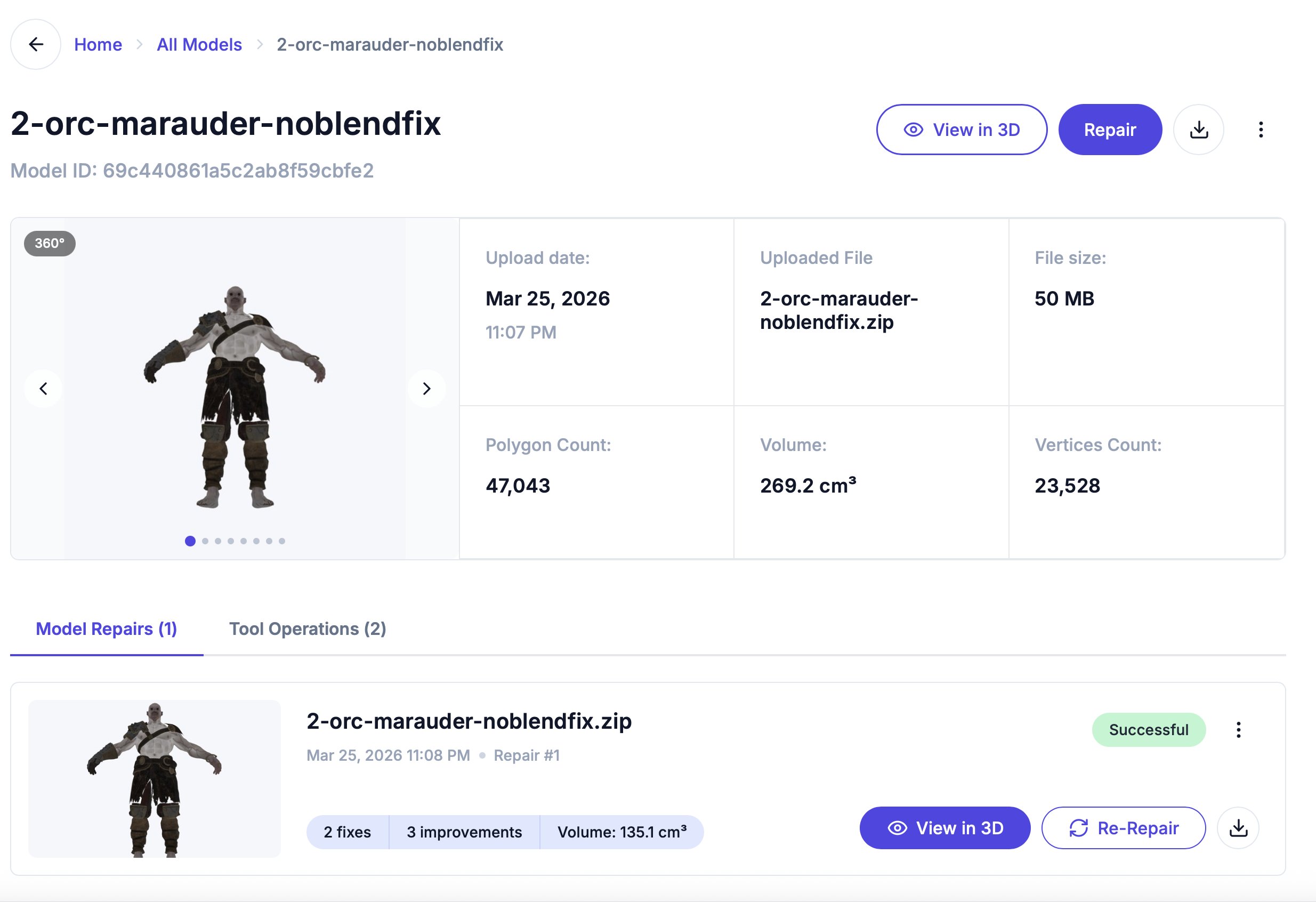 The model detail page is your hub for a single model. It shows all the information, repair history, and tool operations in one place.
## Header
At the top you'll find:
* **Model name** and ID
* **View in 3D** — Opens the [3D editor](/editor/overview)
* **Repair** — Opens the [repair dialog](/repair/overview)
* **Download** — Downloads the original uploaded file
* **More options** (three dots) — Delete model
## Model preview and specs
The left side shows a **360° thumbnail carousel** — click the arrows to see the model from different angles.
The right side shows key stats in a grid:
* **Upload date** — When the model was uploaded, with the upload time on the line below
* **Uploaded File** — The original file name
* **File size** — Original file size
* **Polygon Count** — Total triangle count
* **Volume** — Calculated volume in cm³
* **Vertices Count** — Total vertex count
Polygon Count, Volume, and Vertices Count show **Analyzing…** until geometry analysis finishes. For surface area and bounding-box dimensions, open the model in the [3D editor](/editor/overview) and check the **Object Info** panel.
## Tabs
### Model Repairs
A list of every repair operation run on this model. Each entry shows:
* Repair number and date
* Status badge (completed, failed, in progress)
* Number of fixes applied
* Output file size and volume
Each entry has its own action buttons:
* **View Progress** — Shown while a repair is still processing; opens its progress page
* **View in 3D** — Opens the before/after split view in the editor (disabled for failed repairs)
* **Re-Repair** — Opens the [repair detail page](/repair/progress-and-results)
* **Download** — Downloads the repaired file (disabled for failed repairs)
* **More options** (three dots) — Delete this repair
### Tool Operations
A list of individual tool operations (cut, lattice, label, mirror, etc.) applied to this model or its repairs. Each entry shows the tool name, settings, and status.
Click **View in 3D** to open the editor where you can inspect the model and run tools.
The model detail page is your hub for a single model. It shows all the information, repair history, and tool operations in one place.
## Header
At the top you'll find:
* **Model name** and ID
* **View in 3D** — Opens the [3D editor](/editor/overview)
* **Repair** — Opens the [repair dialog](/repair/overview)
* **Download** — Downloads the original uploaded file
* **More options** (three dots) — Delete model
## Model preview and specs
The left side shows a **360° thumbnail carousel** — click the arrows to see the model from different angles.
The right side shows key stats in a grid:
* **Upload date** — When the model was uploaded, with the upload time on the line below
* **Uploaded File** — The original file name
* **File size** — Original file size
* **Polygon Count** — Total triangle count
* **Volume** — Calculated volume in cm³
* **Vertices Count** — Total vertex count
Polygon Count, Volume, and Vertices Count show **Analyzing…** until geometry analysis finishes. For surface area and bounding-box dimensions, open the model in the [3D editor](/editor/overview) and check the **Object Info** panel.
## Tabs
### Model Repairs
A list of every repair operation run on this model. Each entry shows:
* Repair number and date
* Status badge (completed, failed, in progress)
* Number of fixes applied
* Output file size and volume
Each entry has its own action buttons:
* **View Progress** — Shown while a repair is still processing; opens its progress page
* **View in 3D** — Opens the before/after split view in the editor (disabled for failed repairs)
* **Re-Repair** — Opens the [repair detail page](/repair/progress-and-results)
* **Download** — Downloads the repaired file (disabled for failed repairs)
* **More options** (three dots) — Delete this repair
### Tool Operations
A list of individual tool operations (cut, lattice, label, mirror, etc.) applied to this model or its repairs. Each entry shows the tool name, settings, and status.
Click **View in 3D** to open the editor where you can inspect the model and run tools.