> ## Documentation Index
> Fetch the complete documentation index at: https://docs.3dpreppro.com/llms.txt
> Use this file to discover all available pages before exploring further.
# Upload your first model
> Drag and drop a 3D file to get started
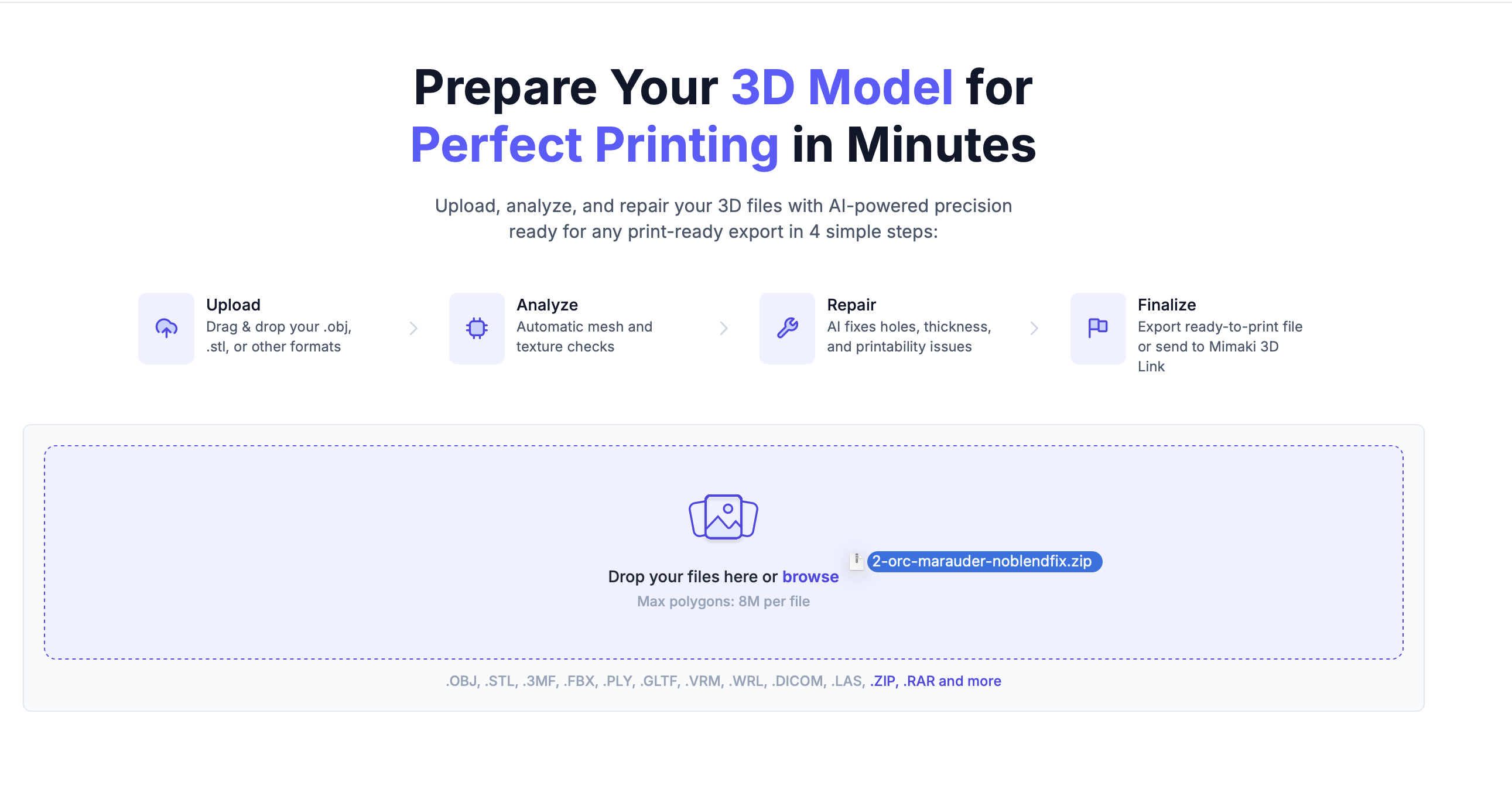
After signing in, you land on the home page with the upload area front and center.
Drag your 3D file directly onto the upload zone — or click **Browse** to pick a file from your computer.
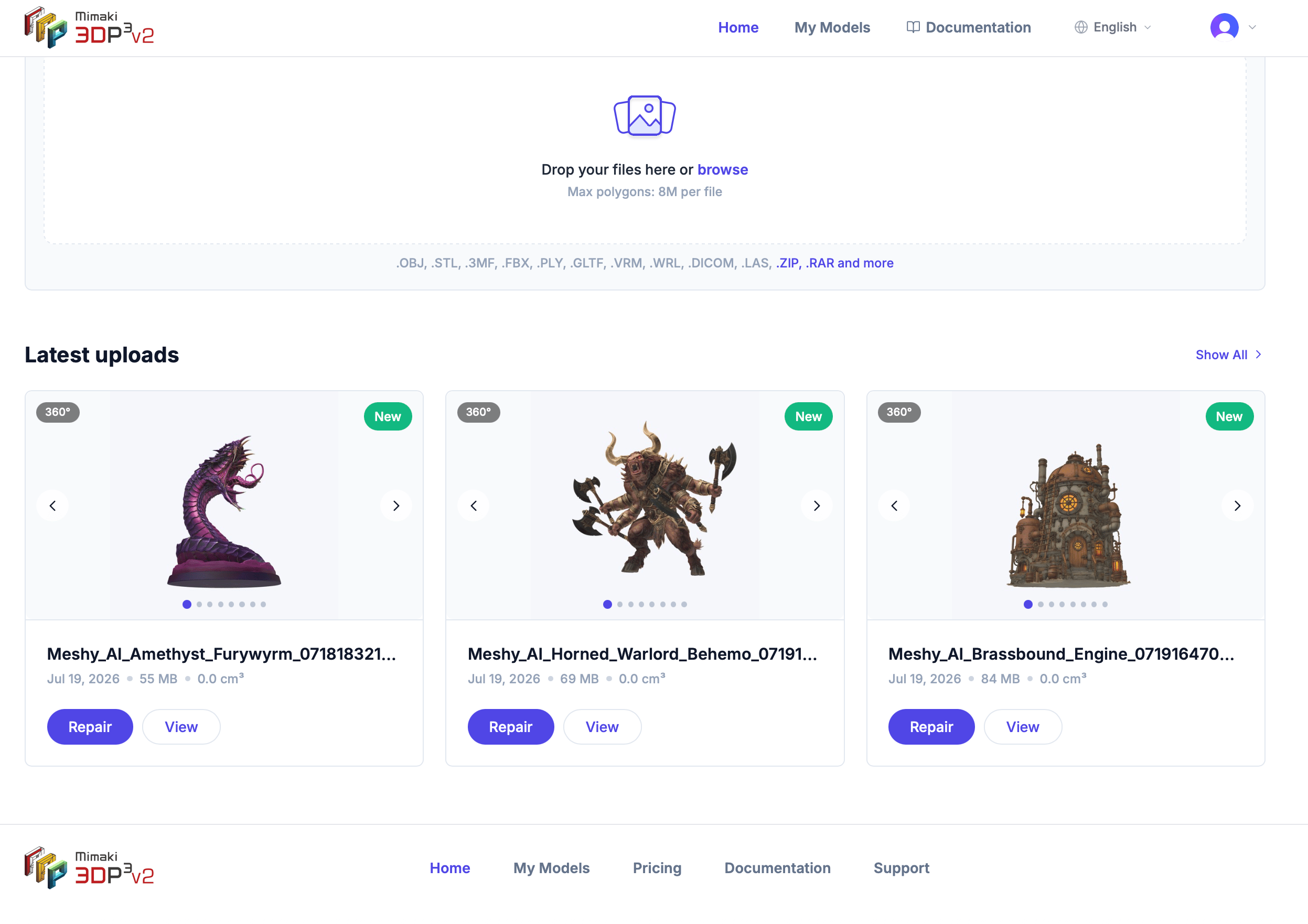
 Your model is uploaded and automatically analyzed. Within a few seconds, 360° thumbnail previews appear and your model shows up in the latest uploads section.
 **Supported formats:** OBJ, STL, 3MF, FBX, PLY, GLTF/GLB, VRM, WRL, DICOM (.dcm), LAS/LAZ. You can also upload **ZIP** and **RAR** archives — we automatically extract the 3D files inside.
Maximum file size is **8 million polygons** per file. For larger models, consider reducing the polygon count in your modeling software before uploading.
**DICOM** (medical imaging) files open the **DICOM Segmentation** dialog after upload, where you define tissue density (HU) ranges to segment the scan into separate 3D parts. Completing this step is required before analysis runs. **LAS/LAZ** (LiDAR point cloud) files upload directly with no extra configuration step. See [Uploading files](/models/uploading-files) for details.
**Supported formats:** OBJ, STL, 3MF, FBX, PLY, GLTF/GLB, VRM, WRL, DICOM (.dcm), LAS/LAZ. You can also upload **ZIP** and **RAR** archives — we automatically extract the 3D files inside.
Maximum file size is **8 million polygons** per file. For larger models, consider reducing the polygon count in your modeling software before uploading.
**DICOM** (medical imaging) files open the **DICOM Segmentation** dialog after upload, where you define tissue density (HU) ranges to segment the scan into separate 3D parts. Completing this step is required before analysis runs. **LAS/LAZ** (LiDAR point cloud) files upload directly with no extra configuration step. See [Uploading files](/models/uploading-files) for details.