> ## Documentation Index
> Fetch the complete documentation index at: https://docs.3dpreppro.com/llms.txt
> Use this file to discover all available pages before exploring further.
# Smoothing
> Soften and round your model's surface during repair
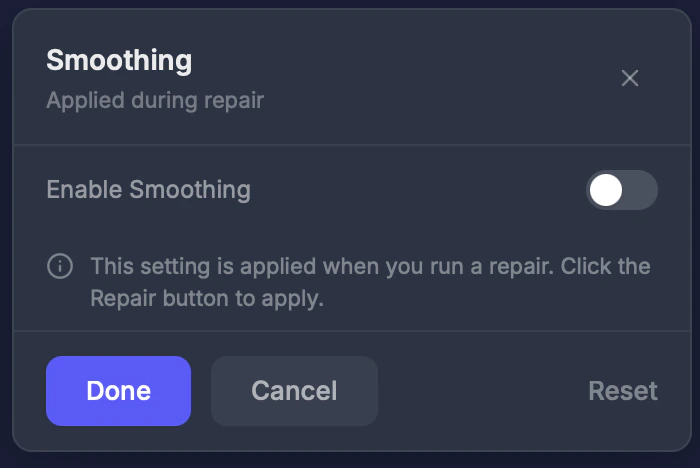 Smoothing softens and rounds your model's surface while it is repaired. Some of it happens **before** the fix (relaxing your original model, so the fix rebuilds from a softer shape) and some happens **after** the fix (relaxing only the rebuilt surface). They're not interchangeable — before-the-fix smoothing changes the shape going in and affects the whole result, while after-the-fix smoothing evens out the new surface without touching what went in. They can be combined.
```mermaid theme={null}
flowchart LR
A([Your model]):::model --> B{{Pre-smoothing}}:::before
B --> C[The fix
Smoothing softens and rounds your model's surface while it is repaired. Some of it happens **before** the fix (relaxing your original model, so the fix rebuilds from a softer shape) and some happens **after** the fix (relaxing only the rebuilt surface). They're not interchangeable — before-the-fix smoothing changes the shape going in and affects the whole result, while after-the-fix smoothing evens out the new surface without touching what went in. They can be combined.
```mermaid theme={null}
flowchart LR
A([Your model]):::model --> B{{Pre-smoothing}}:::before
B --> C[The fix
rebuilds a clean surface]:::fix
C --> M{{Clearance smoothing}}:::during
M --> D{{Post-construct smoothing}}:::after
D --> E([Repaired model]):::model
classDef model fill:#e0e7ff,stroke:#6366f1,stroke-width:2px,color:#1e1b4b
classDef before fill:#cffafe,stroke:#06b6d4,stroke-width:2px,color:#083344
classDef during fill:#fef9c3,stroke:#eab308,stroke-width:2px,color:#422006
classDef after fill:#dcfce7,stroke:#22c55e,stroke-width:2px,color:#052e16
classDef fix fill:#f1f5f9,stroke:#94a3b8,stroke-width:2px,color:#0f172a
```
## When to use this
Smoothing applies to any model — characters, scans, and mechanical parts alike. Choose your settings by the kind of surface you want:
* **Characters / figures / organic models** — turn smoothing on for a softer surface with less faceting on faces, hands, and curves.
* **Mechanical / CAD parts** — leave smoothing off (or very low) so crisp edges stay sharp.
* **Noisy scans** — a small amount of smoothing cleans up bumps and scanning artifacts.
## Settings
Smoothing is controlled by a master **Smoothing** toggle in the repair settings. It is **off by default**, which keeps the repaired surface at maximum detail. Turning it on reveals the three controls below and applies their recommended values.
### Smoothing (master toggle)
Turn smoothing on or off. **Default: Off.** When off, all three stages are disabled and the surface keeps its finest detail.
### Pre-smoothing — before the fix
A toggle that softens your **original model** before it is repaired. This reduces faceting and stair-stepping across the final result. **Turned on automatically when you enable smoothing.** Because it changes the shape going into the fix, turn it off to keep sharp original edges — best for mechanical / CAD parts; leave it on for organic and character models.
### Clearance smoothing (0–256) — during the rebuild
A slider that rounds off detail on the solid **while the fix is rebuilding it**. **Default: 128.** At 0 the finest detail is preserved; higher values remove more bumps and noise before the new surface is finalized.
### Post-construct smoothing (0–50) — after the fix
A slider that relaxes the **rebuilt surface** after the fix. This is the most commonly used smoothing control. **Default: 8.** At 0 fine detail is preserved straight from the fix; each higher step evens out the surface a little more, softening small features.
### Quick reference
| Setting | When it acts | 0 / Off | Higher / On | Default when on |
| ---------------------------- | ------------------ | -------------------------- | ------------------------------------- | --------------- |
| **Pre-smoothing** | Before the fix | Keeps sharp original edges | Softer surface, less faceting | On |
| **Clearance smoothing** | During the rebuild | Finest detail preserved | Rounds detail on the solid | 128 |
| **Post-construct smoothing** | After the fix | Finest detail preserved | Smoother surface, soft small features | 8 |
## Choosing settings by model type
* **Mechanical / CAD parts** (sharp edges matter) — smoothing **off**, or Post-construct low (0–2). Keep Pre-smoothing **off**.
* **Characters / figures / organic models** (smooth surfaces preferred) — smoothing **on**, Post-construct **8**, Pre-smoothing **on**.
* **Noisy scans** — a small Clearance smoothing value to clean the volume, plus Post-construct **8**.
## Tips
* Higher Post-construct and Clearance values soften the surface and can erase fine detail such as wrinkles, engraving, and thin relief — lower them to keep more detail.
* Smoothing does not change how many polygons your model has. Polygon count is set separately by the [Target Faces](/editor/tools/target-faces) / Smart Polygon Count control.
* These are repair settings — they are applied during repair, not as a standalone operation.
VRM / VRoid files are detected automatically by their file extension, so there is no separate VRM smoothing toggle. Use the Smoothing controls above for character models just as you would for any other model.