> ## Documentation Index
> Fetch the complete documentation index at: https://docs.3dpreppro.com/llms.txt
> Use this file to discover all available pages before exploring further.
# Remove Small Parts
> Clean up floating debris and disconnected fragments
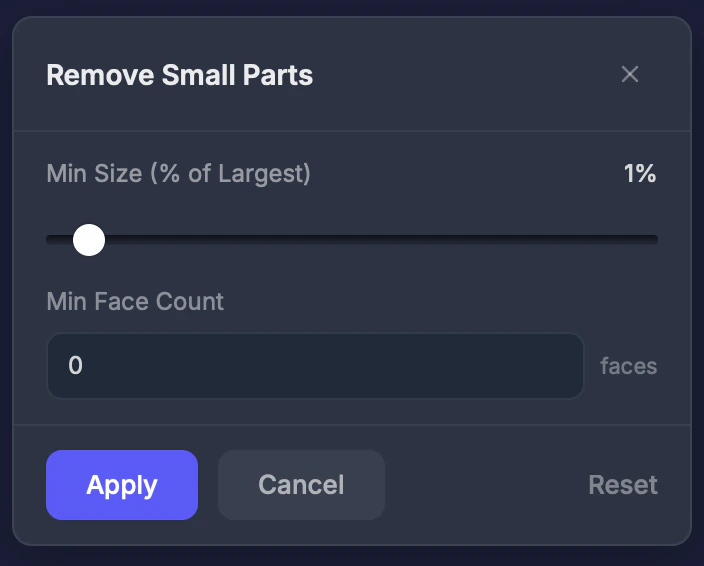 Remove Small Parts filters out disconnected pieces that are too small to print. Models often contain tiny floating fragments from modeling or import errors.
## When to use this
* Your model has small floating pieces or stray geometry
* After importing a complex scene with debris
* When the [Errors](/editor/tools/errors) tool shows many disconnected components
## Settings
### Min Size
The **Min Size (% of Largest)** slider removes parts smaller than this percentage of the largest part. Range **0.1–20 percent**. **Default: 1 percent.**
### Min Face Count
Remove parts with fewer faces than this count. Set to **0** to disable.
## Step by step
Click the tool in the Interactive Tools section.
Set the minimum size percentage. Start with 1% and increase if needed.
Click **Apply**. Small fragments are removed.
## Tips
* Start with **1%** and increase gradually — you don't want to accidentally remove important parts
* Use the [Errors](/editor/tools/errors) tool first to see how many disconnected parts exist
* This won't remove parts physically connected to the main model — only truly separate floating pieces
Remove Small Parts filters out disconnected pieces that are too small to print. Models often contain tiny floating fragments from modeling or import errors.
## When to use this
* Your model has small floating pieces or stray geometry
* After importing a complex scene with debris
* When the [Errors](/editor/tools/errors) tool shows many disconnected components
## Settings
### Min Size
The **Min Size (% of Largest)** slider removes parts smaller than this percentage of the largest part. Range **0.1–20 percent**. **Default: 1 percent.**
### Min Face Count
Remove parts with fewer faces than this count. Set to **0** to disable.
## Step by step
Click the tool in the Interactive Tools section.
Set the minimum size percentage. Start with 1% and increase if needed.
Click **Apply**. Small fragments are removed.
## Tips
* Start with **1%** and increase gradually — you don't want to accidentally remove important parts
* Use the [Errors](/editor/tools/errors) tool first to see how many disconnected parts exist
* This won't remove parts physically connected to the main model — only truly separate floating pieces