> ## Documentation Index
> Fetch the complete documentation index at: https://docs.3dpreppro.com/llms.txt
> Use this file to discover all available pages before exploring further.
# Mirror
> Create a mirrored copy of your model along any axis
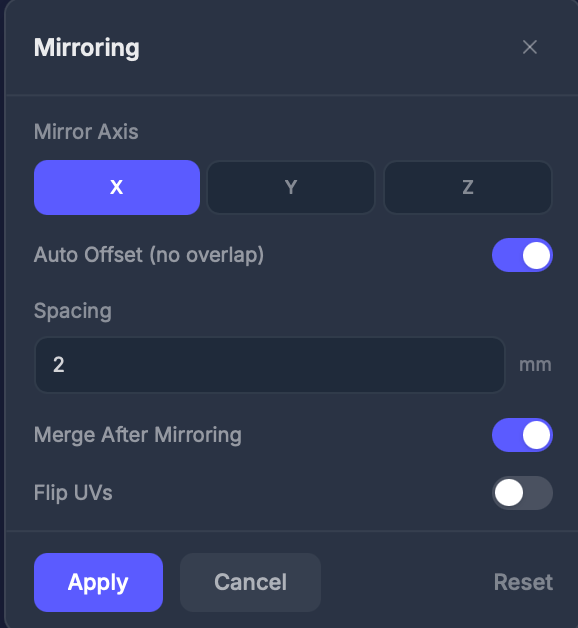 Mirror creates a flipped copy of your model along a chosen axis and optionally merges it with the original. Useful for creating symmetrical objects or duplicating parts.
## When to use this
* Creating a left-hand version from a right-hand part
* Building symmetrical objects from one half
* Duplicating a model in the opposite direction
## Settings
### Axis
**X**, **Y**, or **Z** — the axis to mirror along.
### Spacing (mm)
The gap between the original and the mirrored copy. When **Auto Offset** is on, this is the spacing used to keep the two halves from overlapping. Default: 2.
### Merge
Toggle (default: on). Combines the original and mirrored copy into a single printable object.
### Flip UVs
Toggle (default: off). Also mirrors the texture coordinates. Enable if the mirrored side's textures look wrong.
## Step by step
Click **Mirror** in the Interactive Tools section.
Select X, Y, or Z.
Set the **Spacing** to control the gap between the original and the mirrored copy.
Click **Apply** to create the mirror.
## Tips
* **Merge** creates a single printable object; without merge you get two separate pieces
* Enable **Flip UVs** if text or asymmetric patterns appear backwards on the mirrored half
Mirror creates a flipped copy of your model along a chosen axis and optionally merges it with the original. Useful for creating symmetrical objects or duplicating parts.
## When to use this
* Creating a left-hand version from a right-hand part
* Building symmetrical objects from one half
* Duplicating a model in the opposite direction
## Settings
### Axis
**X**, **Y**, or **Z** — the axis to mirror along.
### Spacing (mm)
The gap between the original and the mirrored copy. When **Auto Offset** is on, this is the spacing used to keep the two halves from overlapping. Default: 2.
### Merge
Toggle (default: on). Combines the original and mirrored copy into a single printable object.
### Flip UVs
Toggle (default: off). Also mirrors the texture coordinates. Enable if the mirrored side's textures look wrong.
## Step by step
Click **Mirror** in the Interactive Tools section.
Select X, Y, or Z.
Set the **Spacing** to control the gap between the original and the mirrored copy.
Click **Apply** to create the mirror.
## Tips
* **Merge** creates a single printable object; without merge you get two separate pieces
* Enable **Flip UVs** if text or asymmetric patterns appear backwards on the mirrored half