> ## Documentation Index
> Fetch the complete documentation index at: https://docs.3dpreppro.com/llms.txt
> Use this file to discover all available pages before exploring further.
# Measure
> Measure distances between any two points on your model
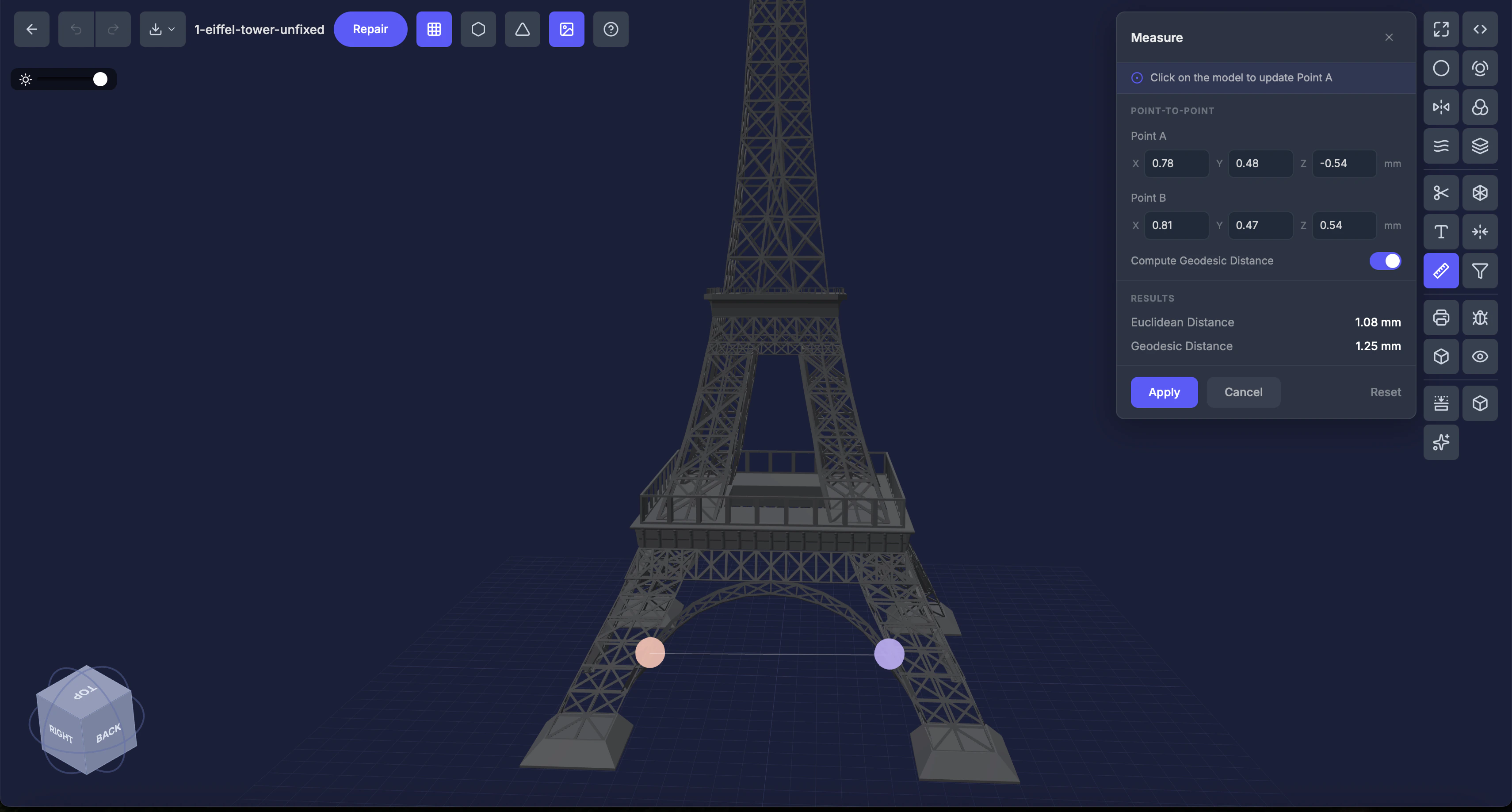 Measure calculates the distance between two points on your model — both the straight-line distance and optionally the distance along the surface.
## When to use this
* Checking if a feature is the right size
* Verifying dimensions match your design specifications
* Measuring the distance between mounting holes, edges, or features
* Checking the path length along a curved surface
## Settings
### Point A and Point B
Click on the model to place each point, or enter X, Y, Z coordinates manually.
### Geodesic distance
Toggle (default: on). Also calculates the distance along the model's surface — not just a straight line through the air.
## Results
After placing both points, click **Apply** to compute the distances (the button shows **Processing...** while it runs). Once the calculation finishes, you see:
* **Straight-line distance** — The shortest path through the air
* **Surface distance** — The shortest path along the model's surface (if enabled)
## Step by step
Click **Measure** in the Interactive Tools section.
Click on the model to place the first measurement point. A marker appears.
Click again to place the second point. A second marker appears.
Click the **Apply** button to compute the distances. The button shows **Processing...** while it runs, then the results appear.
## Tips
* **Surface distance** is useful for measuring around curved features (e.g., the circumference of a cylinder)
* You can manually type coordinates for precise placement
* For overall dimensions (width, height, depth), use the [Object Info](/editor/tools/object-info) tool instead
Measure calculates the distance between two points on your model — both the straight-line distance and optionally the distance along the surface.
## When to use this
* Checking if a feature is the right size
* Verifying dimensions match your design specifications
* Measuring the distance between mounting holes, edges, or features
* Checking the path length along a curved surface
## Settings
### Point A and Point B
Click on the model to place each point, or enter X, Y, Z coordinates manually.
### Geodesic distance
Toggle (default: on). Also calculates the distance along the model's surface — not just a straight line through the air.
## Results
After placing both points, click **Apply** to compute the distances (the button shows **Processing...** while it runs). Once the calculation finishes, you see:
* **Straight-line distance** — The shortest path through the air
* **Surface distance** — The shortest path along the model's surface (if enabled)
## Step by step
Click **Measure** in the Interactive Tools section.
Click on the model to place the first measurement point. A marker appears.
Click again to place the second point. A second marker appears.
Click the **Apply** button to compute the distances. The button shows **Processing...** while it runs, then the results appear.
## Tips
* **Surface distance** is useful for measuring around curved features (e.g., the circumference of a cylinder)
* You can manually type coordinates for precise placement
* For overall dimensions (width, height, depth), use the [Object Info](/editor/tools/object-info) tool instead