> ## Documentation Index
> Fetch the complete documentation index at: https://docs.3dpreppro.com/llms.txt
> Use this file to discover all available pages before exploring further.
# Label
> Add text or markings to your model's surface
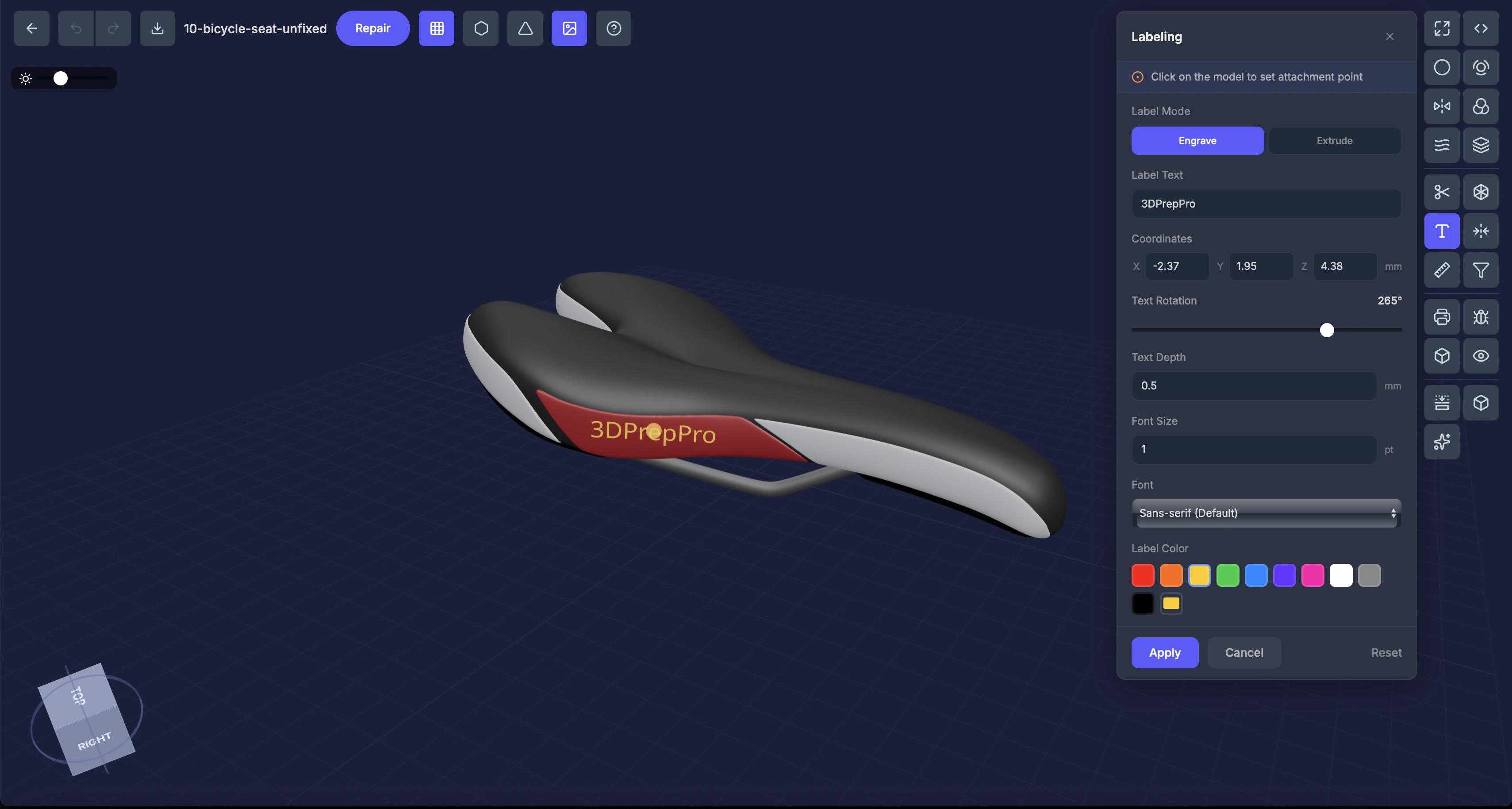 Label lets you engrave or extrude text directly onto your model's surface. Use it for branding, part numbers, names, or any text you want physically printed.
## When to use this
* Adding a name to a figurine's base
* Putting a serial number or version on a part
* Branding or logo placement
* Custom text on gifts or personalized prints
## Settings
### Mode
* **Engrave** — Cuts text into the surface (recessed)
* **Extrude** — Raises text above the surface (protruding)
### Text
The text to add to the model.
### Position (X, Y, Z)
Click on the model to place the label, or enter coordinates manually. A crosshair appears for precise placement.
### Rotation (0–360°)
Angle of the text on the surface.
### Depth (mm)
How deep the engraving cuts, or how far the text extrudes.
### Font size (points)
Size of the text.
### Font
Default, Serif, or Monospace.
### Color
Material color for the label geometry.
## Step by step
Click **Label** in the Interactive Tools section.
Select how you want the text to appear.
Enter the text in the input field.
Click where you want the label placed. A crosshair cursor helps with positioning.
Fine-tune rotation, depth, and size. Click **Apply**.
## Tips
* **Engrave** works better on curved surfaces
* For very small text, increase the depth to ensure it's visible after printing
* A preview appears before you apply, so you can reposition as needed
Label lets you engrave or extrude text directly onto your model's surface. Use it for branding, part numbers, names, or any text you want physically printed.
## When to use this
* Adding a name to a figurine's base
* Putting a serial number or version on a part
* Branding or logo placement
* Custom text on gifts or personalized prints
## Settings
### Mode
* **Engrave** — Cuts text into the surface (recessed)
* **Extrude** — Raises text above the surface (protruding)
### Text
The text to add to the model.
### Position (X, Y, Z)
Click on the model to place the label, or enter coordinates manually. A crosshair appears for precise placement.
### Rotation (0–360°)
Angle of the text on the surface.
### Depth (mm)
How deep the engraving cuts, or how far the text extrudes.
### Font size (points)
Size of the text.
### Font
Default, Serif, or Monospace.
### Color
Material color for the label geometry.
## Step by step
Click **Label** in the Interactive Tools section.
Select how you want the text to appear.
Enter the text in the input field.
Click where you want the label placed. A crosshair cursor helps with positioning.
Fine-tune rotation, depth, and size. Click **Apply**.
## Tips
* **Engrave** works better on curved surfaces
* For very small text, increase the depth to ensure it's visible after printing
* A preview appears before you apply, so you can reposition as needed