> ## Documentation Index
> Fetch the complete documentation index at: https://docs.3dpreppro.com/llms.txt
> Use this file to discover all available pages before exploring further.
# Toolbar layout
> Understanding the three tool groups
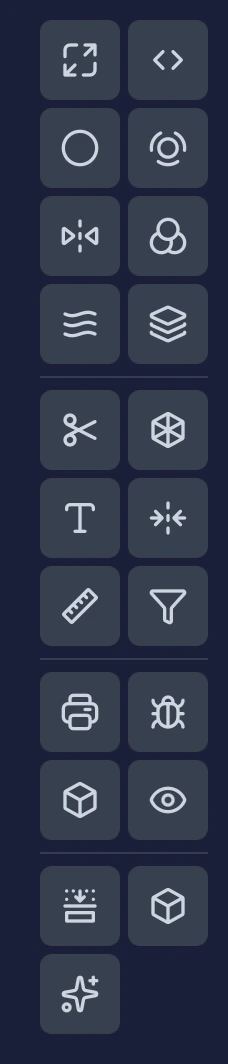 The toolbar on the right side of the editor organizes 18 tools into three groups, separated by dividers — 8 pipeline tools, 6 interactive tools, and 4 inspection tools. A final divider separates a bottom row of quick actions: Slice View, Details, and Fix Settings (shown only while adjusting a repair).
## Pipeline Tools (top)
These settings affect the **repair process**. Adjust them before running a repair.
| Tool | What it does |
| ------------------------------------------------ | ------------------------------- |
| [Scale](/editor/tools/scale) | Resize your model |
| [Wall Thickness](/editor/tools/thickness) | Set minimum wall thickness |
| [Hollow](/editor/tools/hollow) | Create hollow interior |
| [Close Holes](/editor/tools/close-holes) | Fill gaps and openings |
| [Cut Transparent](/editor/tools/cut-transparent) | Remove invisible surfaces |
| [Colors](/editor/tools/colors) | Configure texture handling |
| [Smooth](/editor/tools/smooth) | Surface smoothing during repair |
| [Target Faces](/editor/tools/target-faces) | Control polygon count |
## Interactive Tools (middle)
These tools **modify your model directly**. Use them after repair for additional changes.
| Tool | What it does |
| ------------------------------------------------------ | ------------------------------------ |
| [Cut](/editor/tools/cut) | Slice into pieces with optional keys |
| [Lattice](/editor/tools/lattice) | Generate infill structures |
| [Label](/editor/tools/label) | Add text to the surface |
| [Mirror](/editor/tools/mirror) | Create a mirrored copy |
| [Measure](/editor/tools/measure) | Measure distances |
| [Remove Small Parts](/editor/tools/remove-small-parts) | Clean up floating debris |
## Inspection Tools (bottom)
These tools help you **analyze and visualize** your model without changing it.
| Tool | What it does |
| ---------------------------------------- | ---------------------------- |
| [Validate](/editor/tools/validate) | Printability analysis |
| [Errors](/editor/tools/errors) | Mesh quality report |
| [Object Info](/editor/tools/object-info) | Dimensions and stats |
| [360° View](/editor/tools/360-view) | Lighting and viewing options |
## Bottom row
Separated by a final divider, these are quick actions rather than a tool group.
| Action | What it does |
| -------------------------------------- | --------------------------------------------------------------------------------------- |
| [Slice View](/editor/tools/slice-view) | Cross-section visualization |
| Details | Model dimensions and repair details |
| Fix Settings | Review the settings used for the current repair — appears only while adjusting a repair |
## Visual indicators
* **Blue highlight** — The currently active tool
* **Blue dot** — A tool whose settings have been customized from defaults
* **Dimmed** — Only Lattice dims, and only when the loaded model is the output of another tool (a cut, mirror, or label result). Lattice can be applied to the original or a repaired model; every other tool works on any model, repaired or not.
The toolbar on the right side of the editor organizes 18 tools into three groups, separated by dividers — 8 pipeline tools, 6 interactive tools, and 4 inspection tools. A final divider separates a bottom row of quick actions: Slice View, Details, and Fix Settings (shown only while adjusting a repair).
## Pipeline Tools (top)
These settings affect the **repair process**. Adjust them before running a repair.
| Tool | What it does |
| ------------------------------------------------ | ------------------------------- |
| [Scale](/editor/tools/scale) | Resize your model |
| [Wall Thickness](/editor/tools/thickness) | Set minimum wall thickness |
| [Hollow](/editor/tools/hollow) | Create hollow interior |
| [Close Holes](/editor/tools/close-holes) | Fill gaps and openings |
| [Cut Transparent](/editor/tools/cut-transparent) | Remove invisible surfaces |
| [Colors](/editor/tools/colors) | Configure texture handling |
| [Smooth](/editor/tools/smooth) | Surface smoothing during repair |
| [Target Faces](/editor/tools/target-faces) | Control polygon count |
## Interactive Tools (middle)
These tools **modify your model directly**. Use them after repair for additional changes.
| Tool | What it does |
| ------------------------------------------------------ | ------------------------------------ |
| [Cut](/editor/tools/cut) | Slice into pieces with optional keys |
| [Lattice](/editor/tools/lattice) | Generate infill structures |
| [Label](/editor/tools/label) | Add text to the surface |
| [Mirror](/editor/tools/mirror) | Create a mirrored copy |
| [Measure](/editor/tools/measure) | Measure distances |
| [Remove Small Parts](/editor/tools/remove-small-parts) | Clean up floating debris |
## Inspection Tools (bottom)
These tools help you **analyze and visualize** your model without changing it.
| Tool | What it does |
| ---------------------------------------- | ---------------------------- |
| [Validate](/editor/tools/validate) | Printability analysis |
| [Errors](/editor/tools/errors) | Mesh quality report |
| [Object Info](/editor/tools/object-info) | Dimensions and stats |
| [360° View](/editor/tools/360-view) | Lighting and viewing options |
## Bottom row
Separated by a final divider, these are quick actions rather than a tool group.
| Action | What it does |
| -------------------------------------- | --------------------------------------------------------------------------------------- |
| [Slice View](/editor/tools/slice-view) | Cross-section visualization |
| Details | Model dimensions and repair details |
| Fix Settings | Review the settings used for the current repair — appears only while adjusting a repair |
## Visual indicators
* **Blue highlight** — The currently active tool
* **Blue dot** — A tool whose settings have been customized from defaults
* **Dimmed** — Only Lattice dims, and only when the loaded model is the output of another tool (a cut, mirror, or label result). Lattice can be applied to the original or a repaired model; every other tool works on any model, repaired or not.