> ## Documentation Index
> Fetch the complete documentation index at: https://docs.3dpreppro.com/llms.txt
> Use this file to discover all available pages before exploring further.
# Editor overview
> Your all-in-one workspace for viewing and modifying 3D models
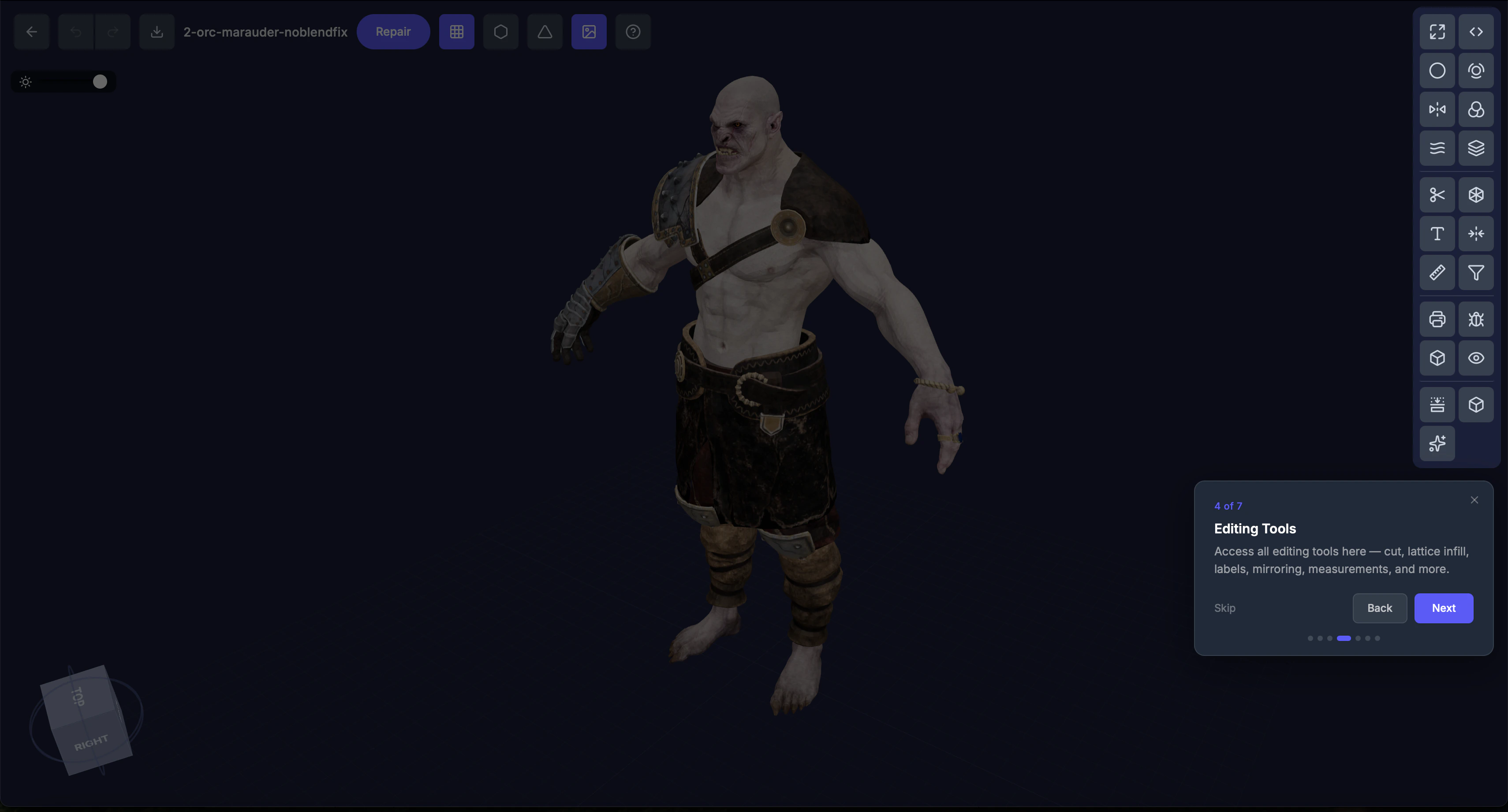 The 3D editor is where you inspect, modify, and prepare your model for printing. It combines a powerful 3D viewer with a full set of editing and inspection tools.
## Layout
* **Header bar** — Model name, back button, and file info
* **3D viewport** — The main area where your model is displayed. Rotate, pan, and zoom to inspect from every angle.
* **Toolbar** — Right side, organized into three groups: [Pipeline Tools](/editor/toolbar-layout), [Interactive Tools](/editor/toolbar-layout), and [Inspection Tools](/editor/toolbar-layout)
* **Settings panel** — Opens on the right when you select a tool. Configure options here.
## How to open the editor
Click **View in 3D** from any model detail page or repair detail page. The editor loads your model in the viewport.
## Working with tools
1. Click a **tool icon** in the toolbar — its settings panel opens on the right
2. **Adjust settings** using the sliders, inputs, and toggles
3. **Apply** the tool (for interactive tools) or the settings carry over to the next repair (for pipeline tools)
The active tool icon highlights blue. A small blue dot on any tool icon means you've customized its settings from the defaults.
All interactive tools work on unrepaired models. The only exception is **Lattice**, which dims when the current model is the output of another interactive tool — it can only be applied to the original model or a repair output. Lattice is also unavailable for models larger than 635 mm (25 in) on the longest axis.
Not sure where to start? Run [Validate](/editor/tools/validate) to check whether your model is print-ready, then use the repair tools to fix anything it flags.
The 3D editor is where you inspect, modify, and prepare your model for printing. It combines a powerful 3D viewer with a full set of editing and inspection tools.
## Layout
* **Header bar** — Model name, back button, and file info
* **3D viewport** — The main area where your model is displayed. Rotate, pan, and zoom to inspect from every angle.
* **Toolbar** — Right side, organized into three groups: [Pipeline Tools](/editor/toolbar-layout), [Interactive Tools](/editor/toolbar-layout), and [Inspection Tools](/editor/toolbar-layout)
* **Settings panel** — Opens on the right when you select a tool. Configure options here.
## How to open the editor
Click **View in 3D** from any model detail page or repair detail page. The editor loads your model in the viewport.
## Working with tools
1. Click a **tool icon** in the toolbar — its settings panel opens on the right
2. **Adjust settings** using the sliders, inputs, and toggles
3. **Apply** the tool (for interactive tools) or the settings carry over to the next repair (for pipeline tools)
The active tool icon highlights blue. A small blue dot on any tool icon means you've customized its settings from the defaults.
All interactive tools work on unrepaired models. The only exception is **Lattice**, which dims when the current model is the output of another interactive tool — it can only be applied to the original model or a repair output. Lattice is also unavailable for models larger than 635 mm (25 in) on the longest axis.
Not sure where to start? Run [Validate](/editor/tools/validate) to check whether your model is print-ready, then use the repair tools to fix anything it flags.