> ## Documentation Index
> Fetch the complete documentation index at: https://docs.3dpreppro.com/llms.txt
> Use this file to discover all available pages before exploring further.
# Profile settings
> Manage your name, email, password, and profile photo
Access your profile settings by clicking your name in the top-right corner and selecting **Settings**.
 ## Edit your name
Update your first and last name in the Edit Profile section. Click **Save** to confirm.
## Profile photo
* Click your current photo (or the placeholder) to upload a new image
* Click **Delete** to remove your photo and use the default avatar
## Change email
Changing your email is a three-step verification process:
Type your new email address in the Change Email section.
A verification code is sent to your new email. Enter the code to confirm.
Once verified, the new email becomes your primary email for sign-in and notifications.
## Change password
Enter your current password, then your new password twice to confirm. Click **Update Password**.
## Subscription management
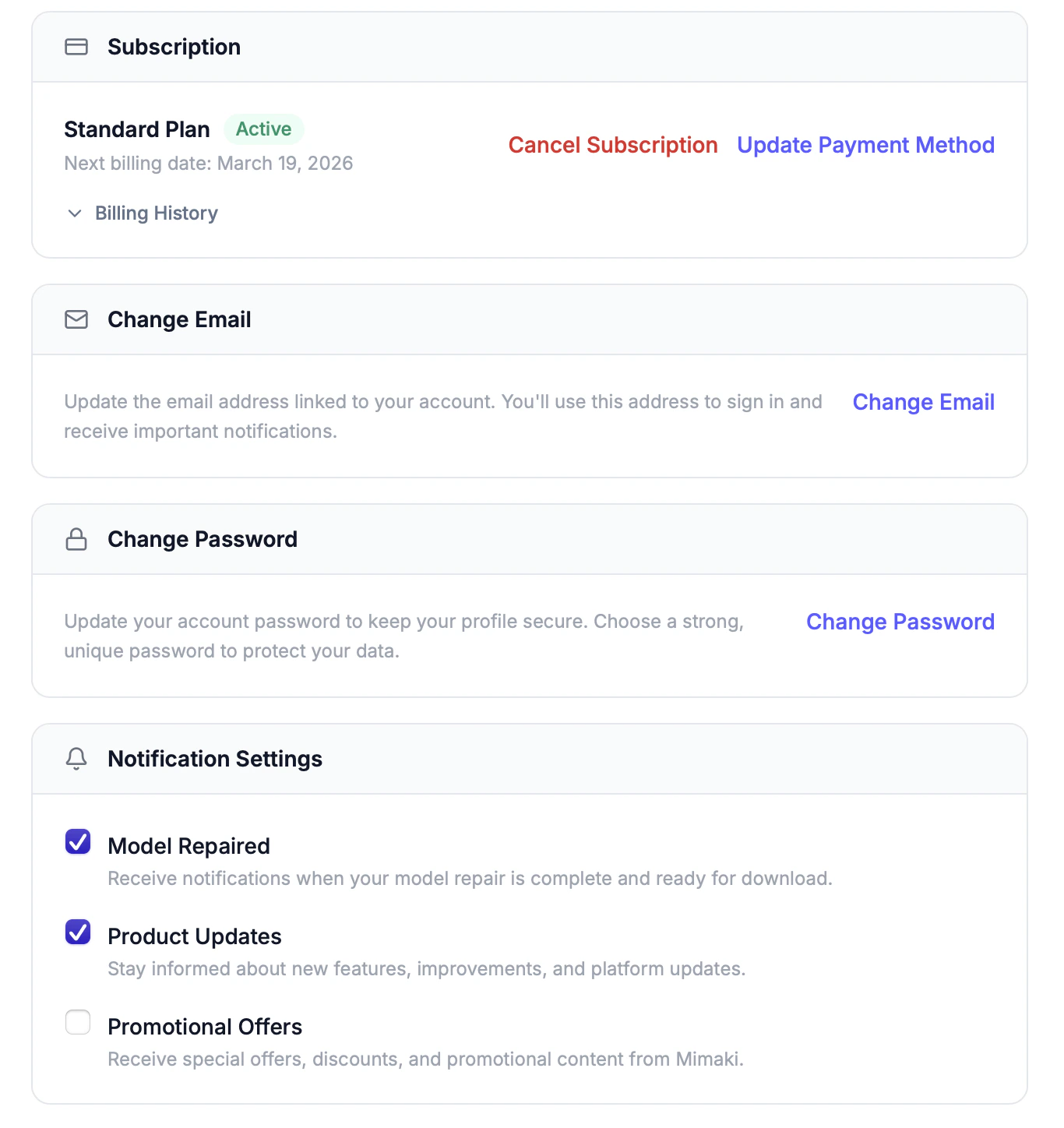
The Subscription section shows:
* Your current plan name and status (active, trial, canceled)
* Days remaining in your trial (if applicable)
* Next billing date
* **Update Payment Method** — opens a secure Stripe form to save a new card
* **Cancel Subscription** — cancels at the end of the current billing period (you keep access until then)
* **Reactivate** — if canceled, reactivate before the period ends to continue without interruption
## Billing history
A table showing all billing events: subscription created, payments, failures, cancellations, and reactivations. Each entry shows the date and amount. For payment entries, click the **Receipt** link to download the invoice or receipt.
## Delete account
Account deletion is permanent and cannot be undone. All your models, repairs, and settings are permanently deleted.
To delete your account, scroll to the bottom of the settings page and click **Delete Account**. You'll be asked to type "Delete" to confirm.
## Edit your name
Update your first and last name in the Edit Profile section. Click **Save** to confirm.
## Profile photo
* Click your current photo (or the placeholder) to upload a new image
* Click **Delete** to remove your photo and use the default avatar
## Change email
Changing your email is a three-step verification process:
Type your new email address in the Change Email section.
A verification code is sent to your new email. Enter the code to confirm.
Once verified, the new email becomes your primary email for sign-in and notifications.
## Change password
Enter your current password, then your new password twice to confirm. Click **Update Password**.
## Subscription management
The Subscription section shows:
* Your current plan name and status (active, trial, canceled)
* Days remaining in your trial (if applicable)
* Next billing date
* **Update Payment Method** — opens a secure Stripe form to save a new card
* **Cancel Subscription** — cancels at the end of the current billing period (you keep access until then)
* **Reactivate** — if canceled, reactivate before the period ends to continue without interruption
## Billing history
A table showing all billing events: subscription created, payments, failures, cancellations, and reactivations. Each entry shows the date and amount. For payment entries, click the **Receipt** link to download the invoice or receipt.
## Delete account
Account deletion is permanent and cannot be undone. All your models, repairs, and settings are permanently deleted.
To delete your account, scroll to the bottom of the settings page and click **Delete Account**. You'll be asked to type "Delete" to confirm.